
Reminders, escalation and response times
Account ManagerBusiness DevelopmentVP of Sales
Transcript
- This video shows how you track the team's response times, and how reminders and escalations are set.
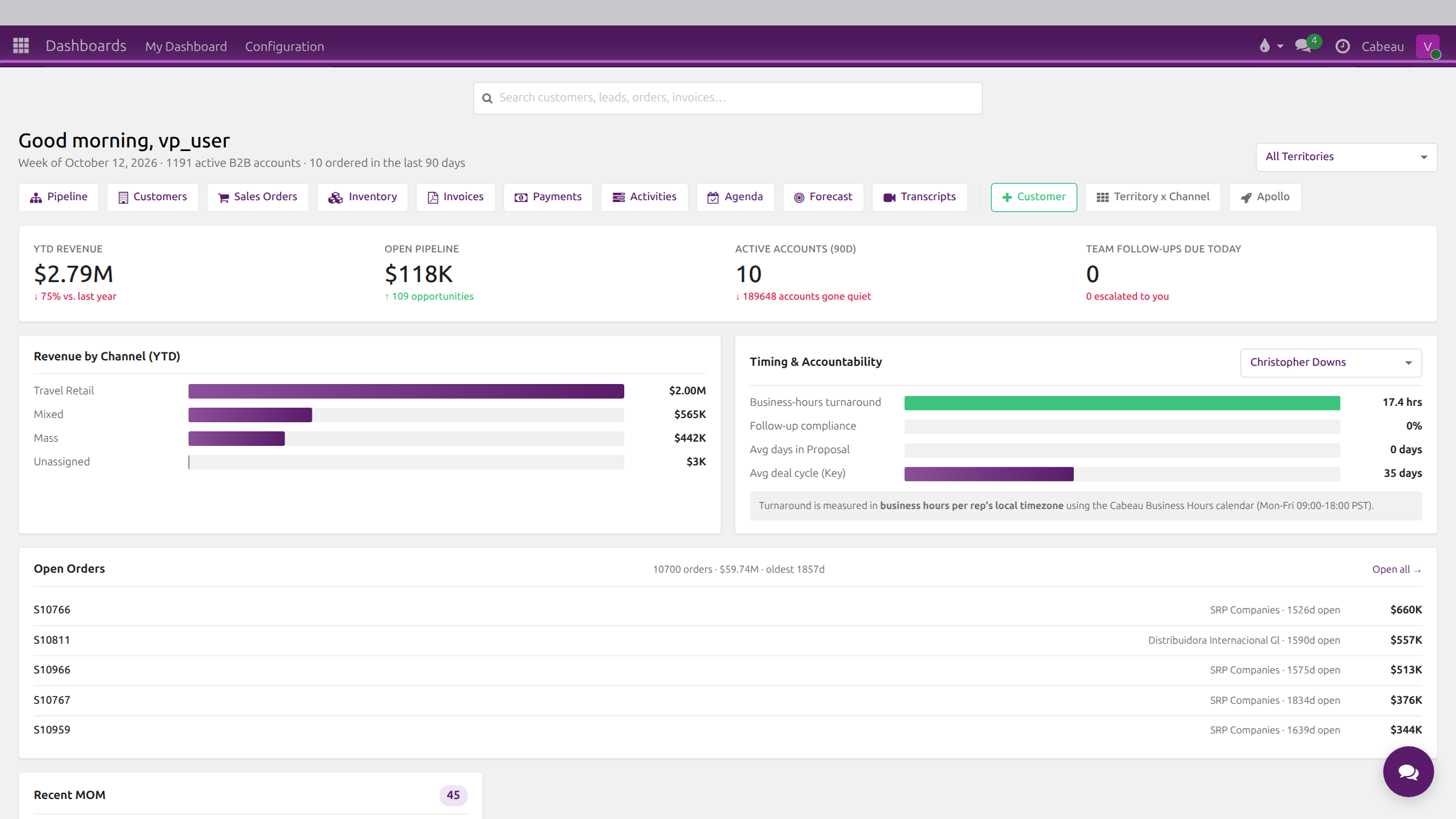
- Timing and Accountability on your dashboard shows how quickly the team responds.
- Pick a rep to see their own numbers.
- Turnaround is measured in business hours, in the rep's own timezone. Follow-up compliance and deal timings sit beside it.
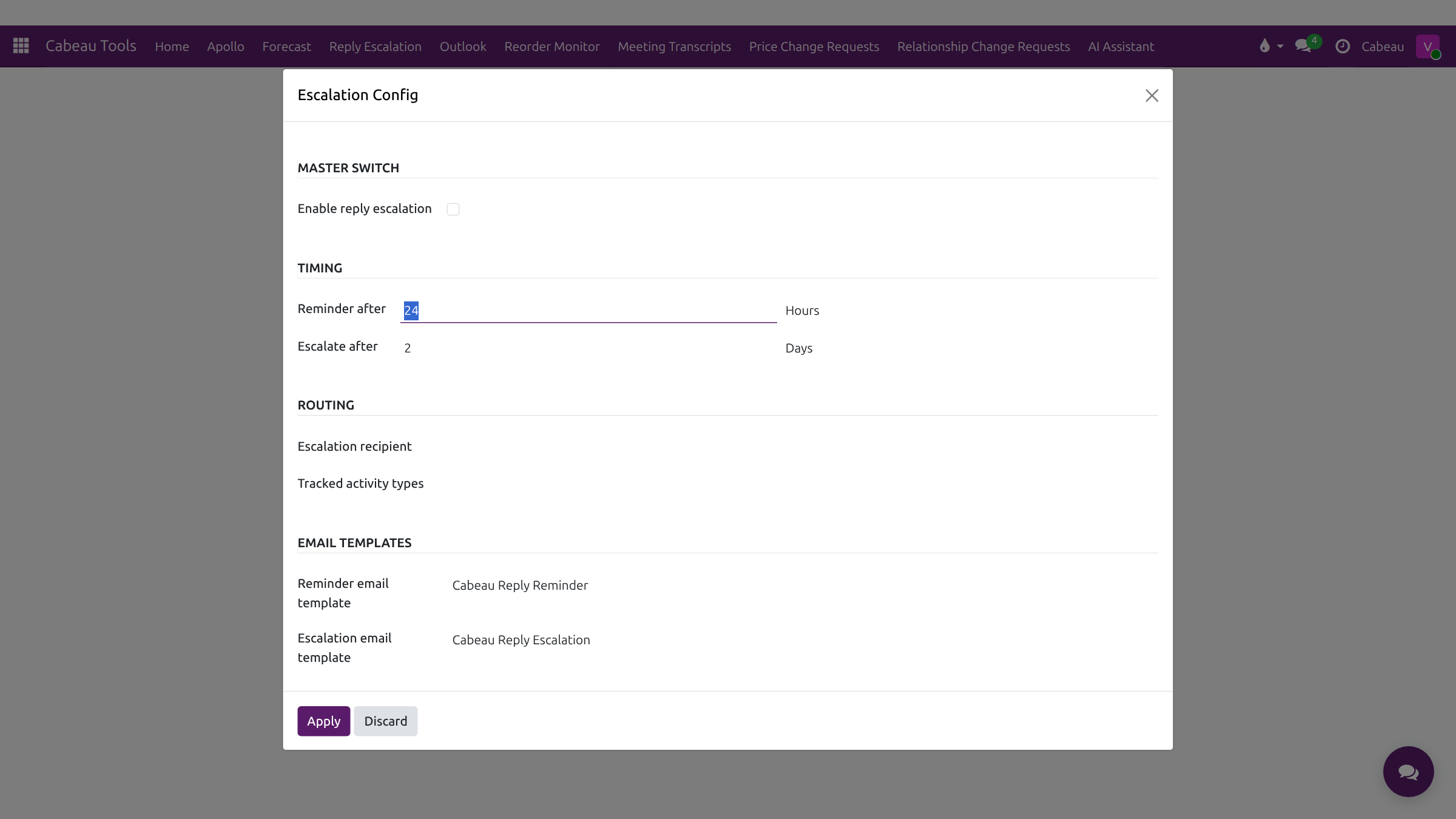
- Reply escalation chases customer emails that nobody has answered. Open Cabeau Tools, Reply Escalation, Escalation Config.
- The master switch turns it on for the whole team.
- Timing sets the reminder to the rep, after twenty four hours, and the escalation, after two days.
- Routing names who receives the escalation. Discard closes the settings without changes.
- That is how response times, reminders and escalations fit together.
Response times per rep
Section titled “Response times per rep”Timing and Accountability on the dashboard shows business-hours turnaround, follow-up compliance, average days in Proposal and average deal cycle. The VP picks one rep from the selector to see their numbers. Turnaround is measured in business hours in each rep’s local timezone.
Reminders and escalation
Section titled “Reminders and escalation”Cabeau Tools > Reply Escalation > Escalation Config (VP) sets how unanswered customer emails are chased. It runs once the VP switches on Enable reply escalation:
- a reminder to the rep after a set time, 24 hours by default;
- an escalation after a further period, two days by default, to the chosen recipient;
- which activity types are tracked, and the email templates used.
Escalation Activities lists every escalation raised, with when the reminder was sent.