Forecasting
Open Forecast on your dashboard, or Cabeau Tools > Forecast > Forecast Sheet. The sheet has three tabs: Forecast, Forecast vs Actual and Annual Budget.
| Role | Can |
|---|---|
| VP of Sales | See and edit every account, filter by rep, unlock the year, approve changes |
| Account Manager | Enter figures for your own accounts |
| Business Development | No forecast menu |
Entering forecasts
Section titled “Entering forecasts”Click a month cell for the account, type the figure and press Enter. Escape cancels.
Transcript
- This workflow shows how you change a monthly forecast, and what happens to the change.
- The forecast sheet has one row per account and one column per month. The year is locked against direct edits.
- Click the month you want to change. Here, December for Newslink of Tampa.
- Type the new amount and press Enter.
- The figure does not change straight away. The cell is shaded while the VP of Sales reviews your request.
- Forecast, Change Requests lists your requests, with the month, the old and new amounts, and the status.
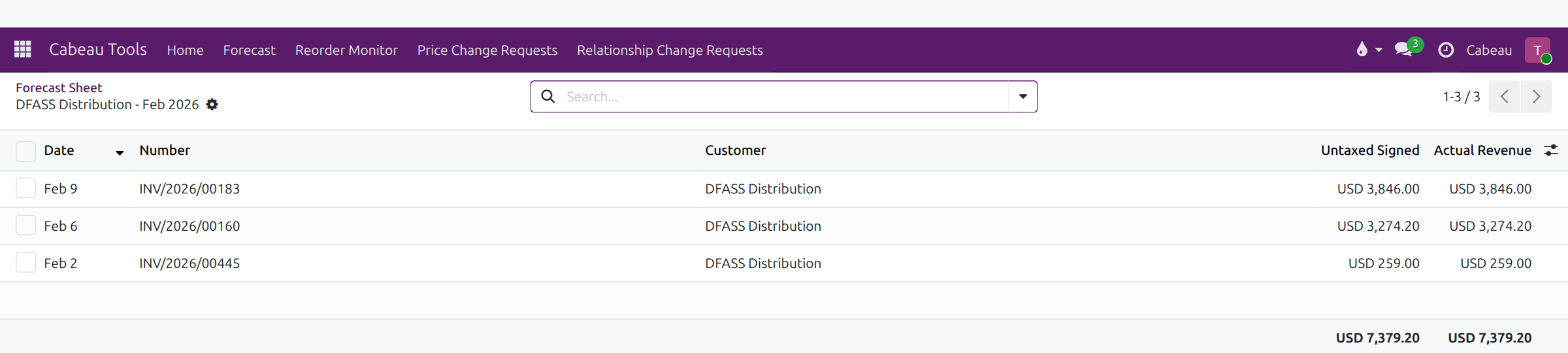
- Back on the sheet, Forecast vs Actual shows actual sales under each forecast. Click an actual figure to see the invoices behind it.
- That is how you propose a forecast change. Next, the approval.
Forecast lock and change approval
Section titled “Forecast lock and change approval”- The year is locked. A figure you enter on a locked year becomes a change request for the VP of Sales, and the cell shows your proposed figure, shaded and in italics, until it is decided.
- Follow your requests under Cabeau Tools > Forecast > Change Requests.
- The VP approves or rejects each request there. The VP can also Unlock the year, or name trusted users under Allow Users who edit directly.
Check the Change Requests list for decisions; the Hub does not send a separate notification.
Transcript
- This workflow shows how the VP of Sales approves a forecast change proposed by an account manager.
- Cabeau Tools, Forecast, Change Requests opens on everything waiting for you. Search for the account to find one request.
- Each row shows the account, the month, the previous amount, the proposed amount and who asked.
- Open the request. The previous and proposed amounts sit side by side, with the account and the month.
- Approve applies the new figure to the forecast. Reject keeps the old one. Either way, the account manager sees your decision.
- The status moves to Approved, and the review records who decided and when.
- On the forecast sheet, the new December figure now counts in the account's total.
- That is how a forecast change is approved.
Forecast against actuals
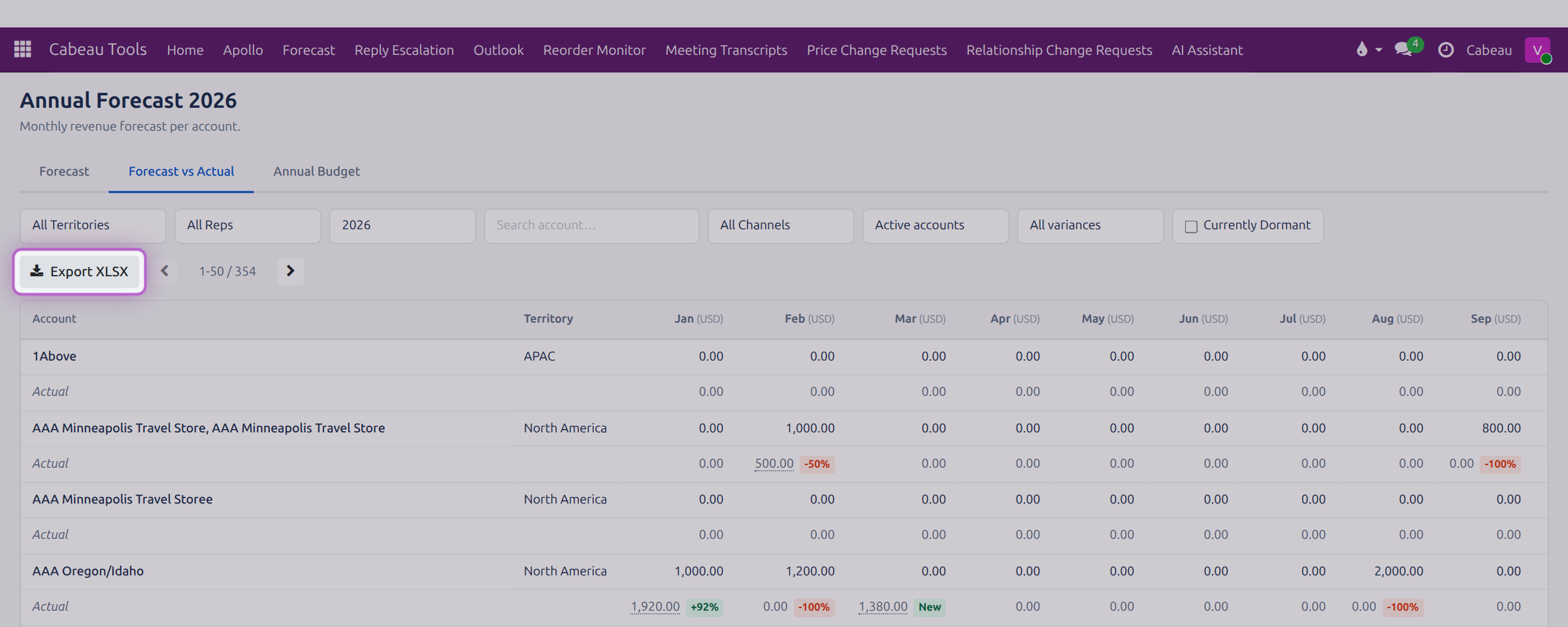
Section titled “Forecast against actuals”The Forecast vs Actual tab shows each account’s actual sales under its forecast, with the variance.
- Filters: territory, rep (VP), year, channel, active or inactive accounts, variance band, and Currently Dormant.
- Click an actual figure to open the invoices behind it.
- Account Managers also have Cabeau Tools > Forecast > My Forecast vs Actuals, a pivot with last year’s actuals beside this year.
Transcript
- This video covers the annual forecast: a monthly revenue target for every account.
- Open it from the Forecast shortcut on your dashboard, or from Cabeau Tools, Forecast. Each row is an account, each column a month.
- Filter by territory, rep, year, channel, or active accounts, or search for one account.
- Here, the accounts David Montoya manages.
- A shaded cell has a change waiting for your approval. The total row adds up each month.
- The year is locked, so changes from reps go through approval. As VP, you can unlock it.
- Allow Users names trusted users whose edits apply straight away, even while the year is locked.
- Export XLSX downloads the sheet to Excel. Import XLSX loads a completed sheet back in.
- Forecast vs Actual puts each month's actual sales under the forecast, with the variance as a percentage.
- Filter by variance to find accounts running behind, or tick Currently Dormant to list accounts that have stopped ordering.
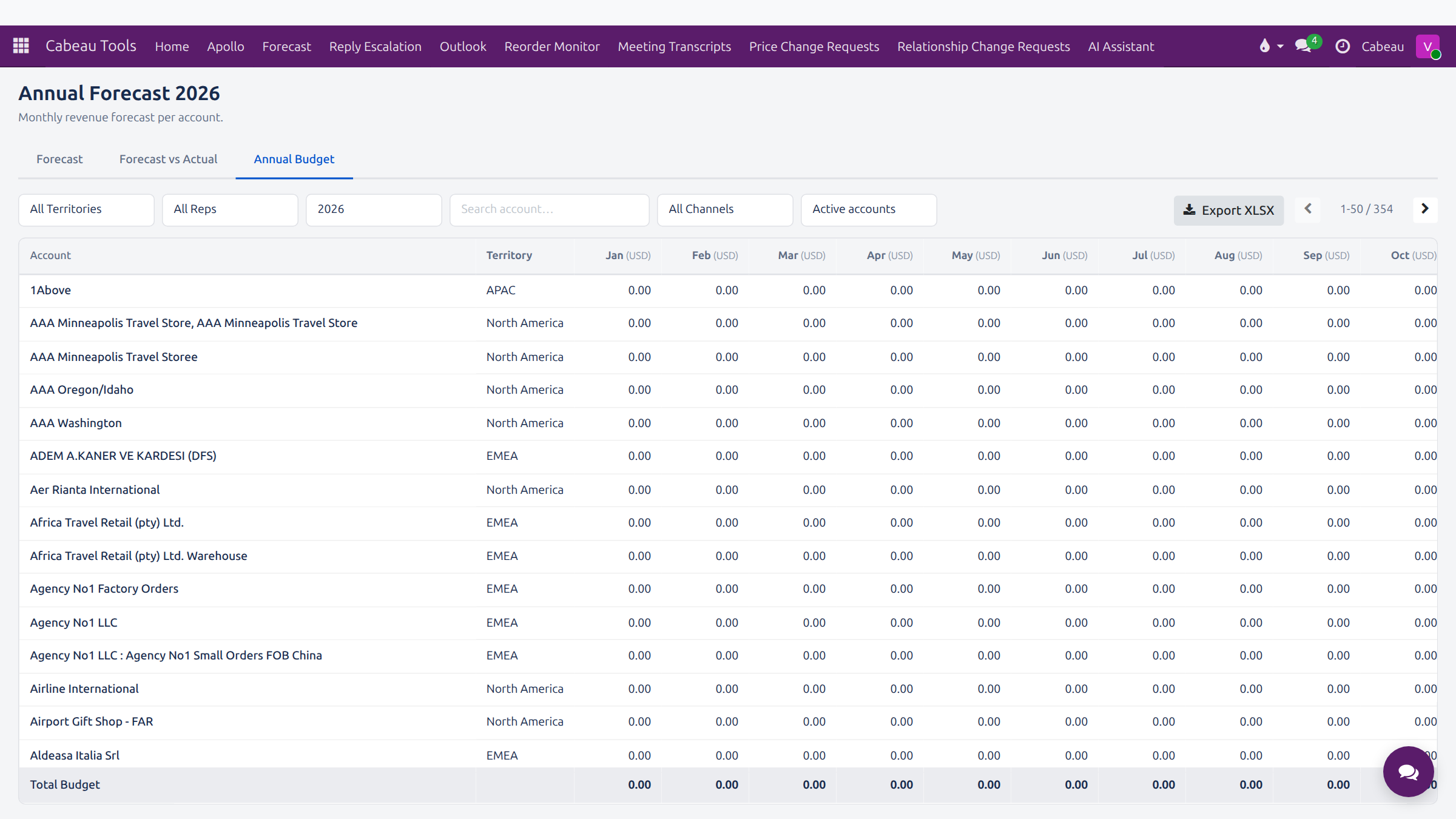
- Annual Budget holds the budget figures per account and month, with its own export.
- That is the forecast. Next, approving changes from your team.
Annual budget
Section titled “Annual budget”The Annual Budget tab holds the budget per account and month, with the same filters and a total row. The VP of Sales maintains it.
Exporting forecast data
Section titled “Exporting forecast data”Export XLSX is on every tab. The Forecast vs Actual export gives three rows per account, Forecast, Actual and Var %, for each month and the total. For CSV, use Download xlsx on My Forecast vs Actuals, or export from any list (see Reporting).
Your monthly goals are your forecast targets. Track them on your dashboard:
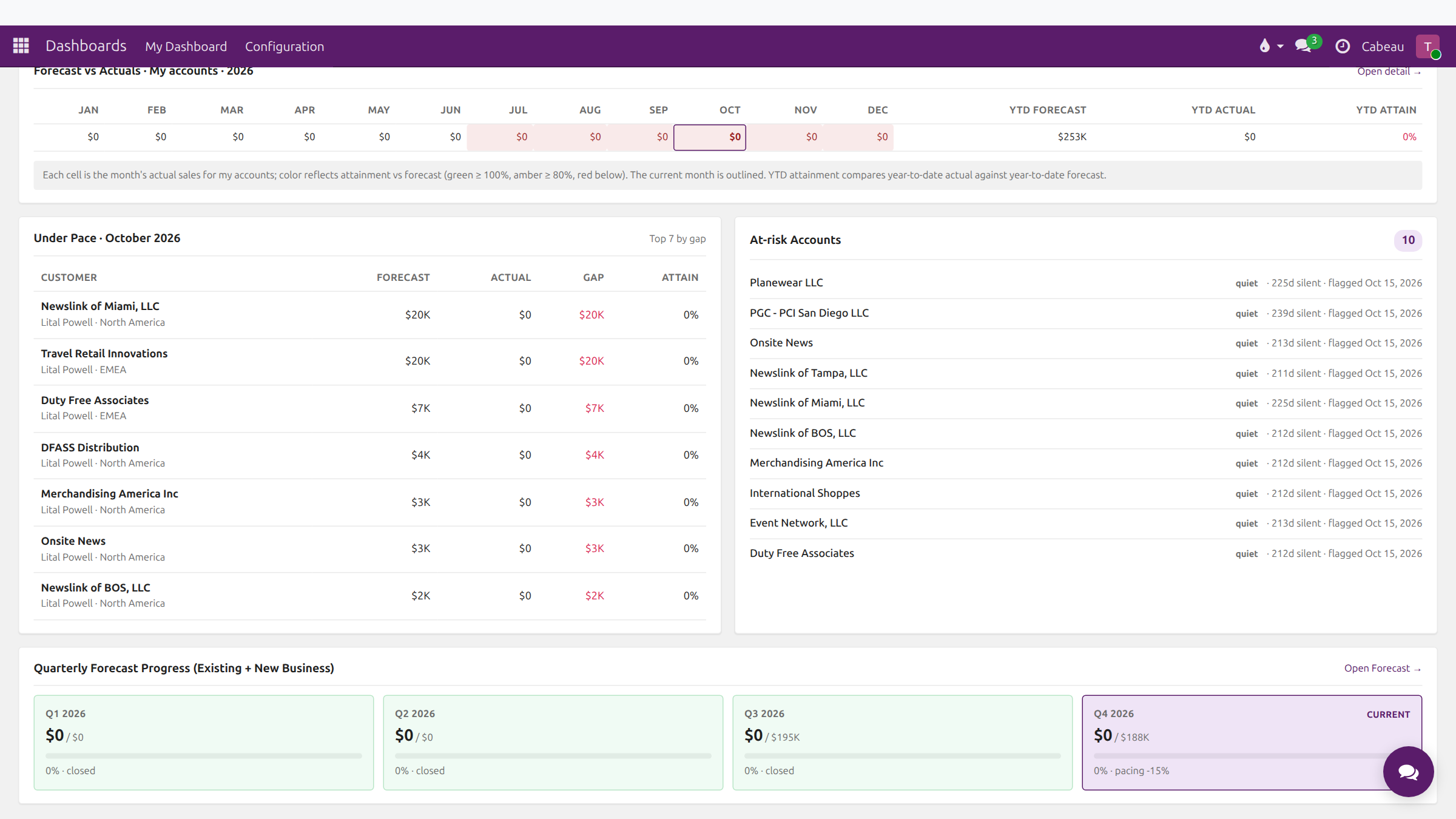
- Quarterly Forecast Progress, existing and new business against forecast for each quarter, with the current quarter highlighted;
- the Forecast vs Actuals strip and Under Pace;
- My Forecast vs Actuals for the detail.
The VP sets every rep’s targets through the forecast sheet; reps change their own through change requests.