Meeting notes: from the note-taker to tasks
Account ManagerBusiness DevelopmentVP of Sales
Transcript
- This video follows a meeting from the note-taker joining the call to the minutes and tasks it produces.
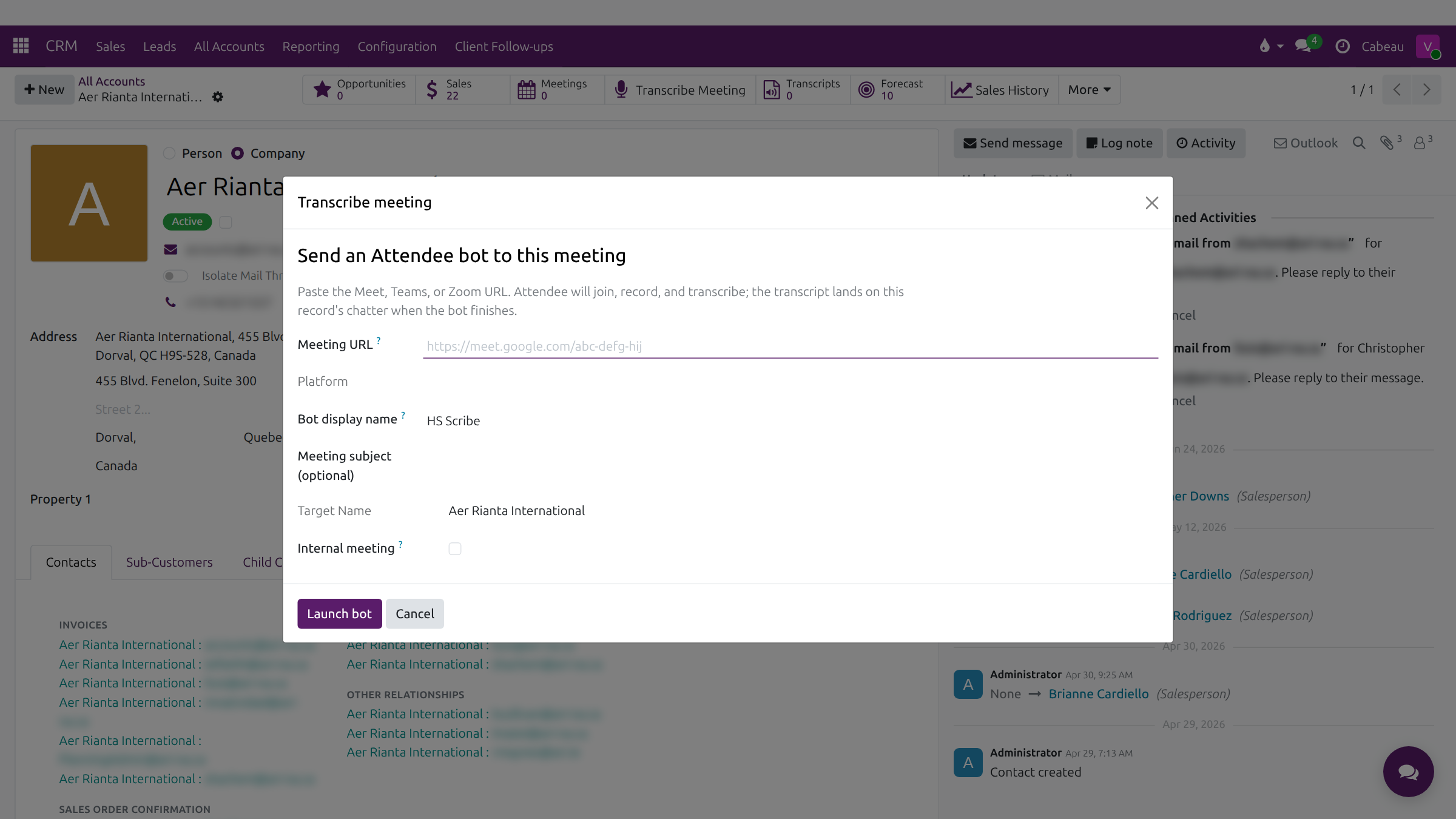
- On an account, Transcribe Meeting sends the note-taker into a Teams, Meet or Zoom call.
- Paste the meeting link, check the platform and subject, and launch the bot. It joins, records and transcribes.
- When the call ends, the transcript lands on the account, under Transcripts.
- Recent MOM on your dashboard lists the meetings the Hub has summarised, with how many tasks each produced.
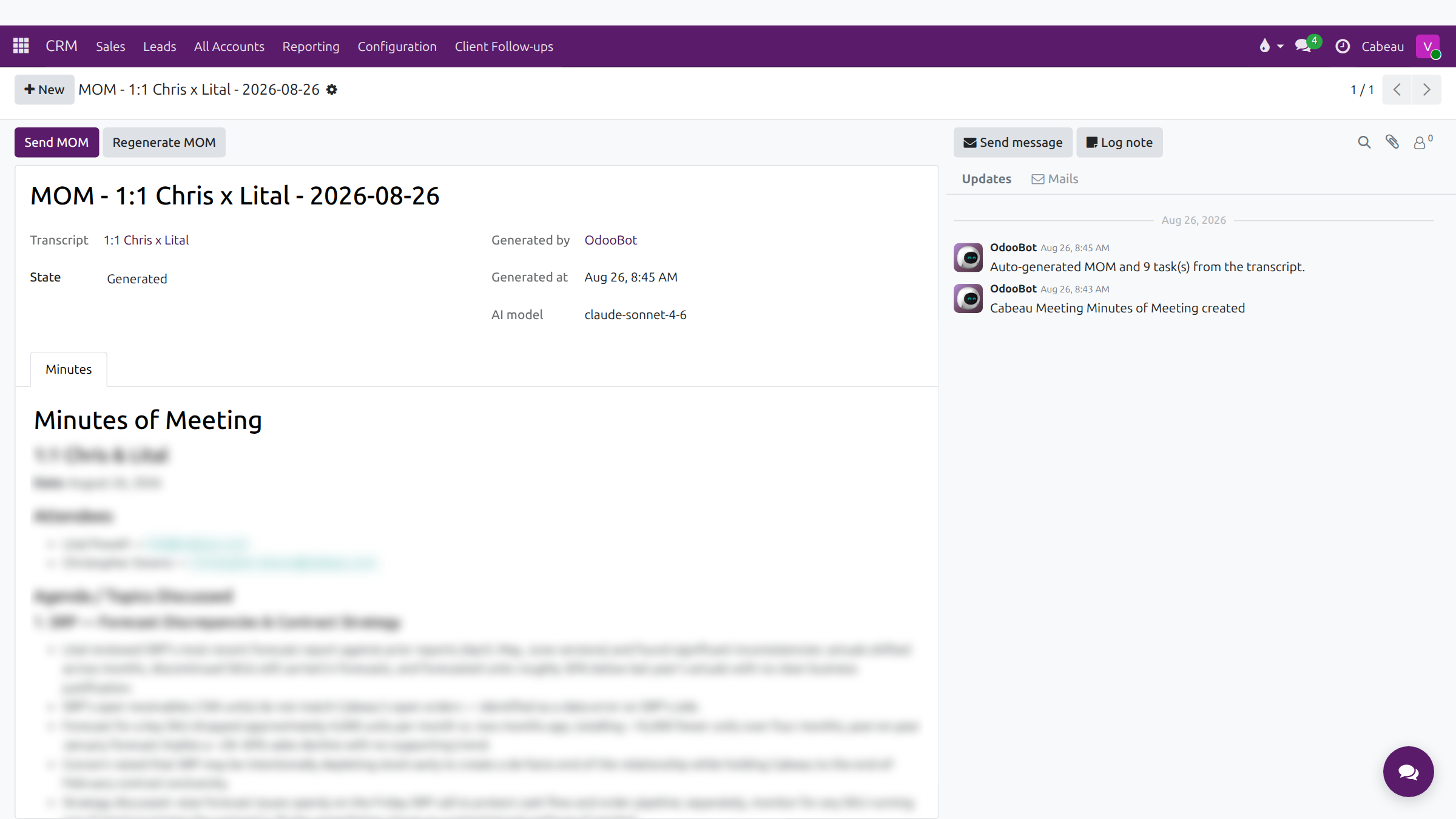
- Open one to read the minutes: attendees, topics, decisions and next steps, written from the transcript.
- The Hub turns the next steps into tasks for the people named, and notes how many it created.
- Send MOM emails the minutes to the attendees. Regenerate MOM writes them again from the transcript.
- That is how a meeting becomes minutes and tasks.
1. Bring the note-taker in
Section titled “1. Bring the note-taker in”On the account, select Transcribe Meeting. Paste the Teams, Google Meet or Zoom link, check the bot’s display name (HS Scribe), add a subject if you like, tick Internal meeting for meetings without customers, and select Launch bot. It joins, records and transcribes the meeting.
2. The transcript, minutes and tasks
Section titled “2. The transcript, minutes and tasks”When the bot finishes, the transcript is filed on the account under Transcripts and in its chatter. The Hub then writes the minutes of meeting, with attendees, topics discussed, key decisions and next steps, and creates the follow-up tasks it found.
3. Read the minutes and tasks
Section titled “3. Read the minutes and tasks”Recent minutes appear on the dashboard under Recent MOM, with the number of tasks and the date.
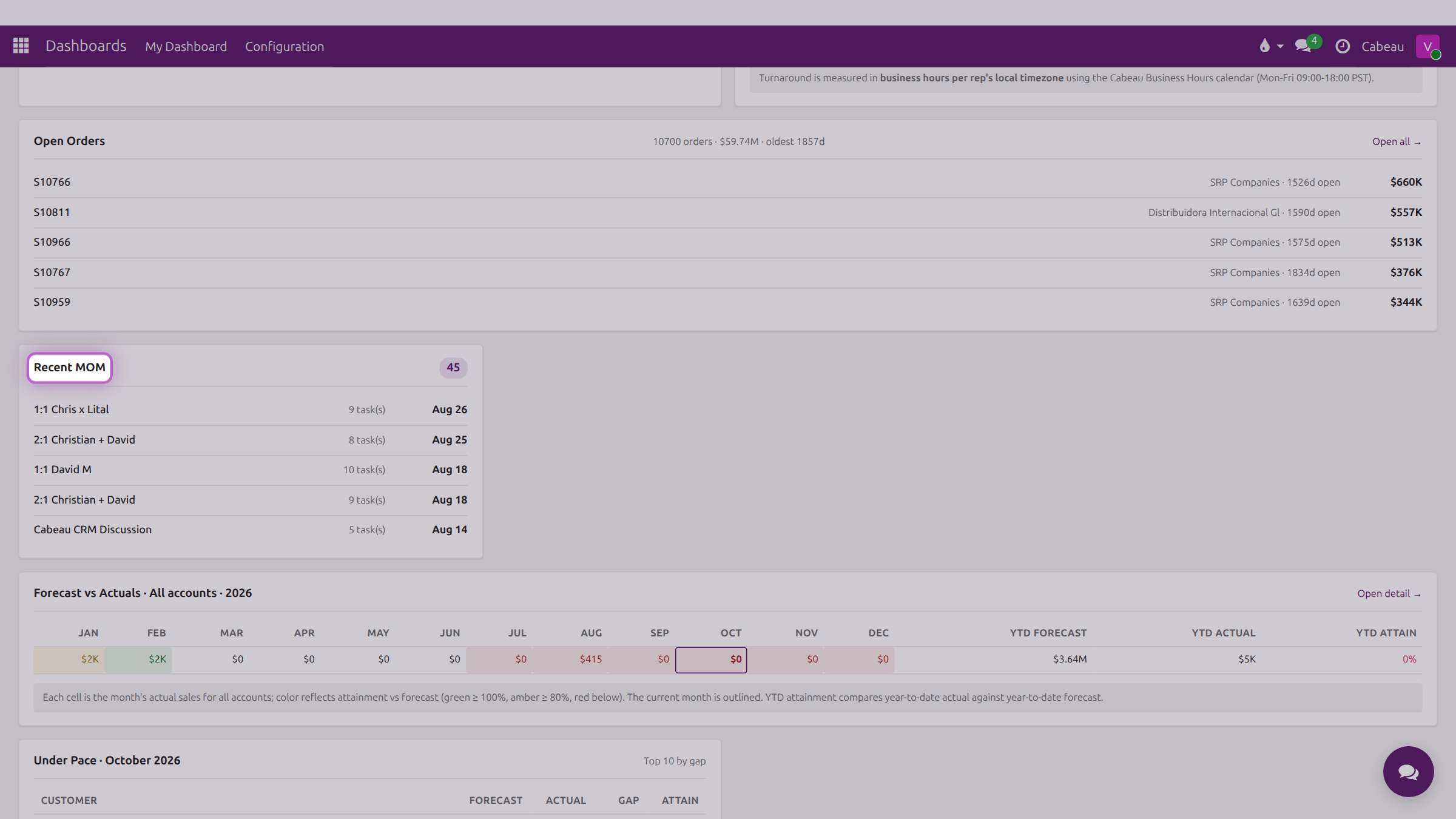
Open one to read the minutes. Send MOM emails them to the attendees and Regenerate MOM rewrites them.