
Follow-ups and activities
Account Manager
Follow-ups and activities 
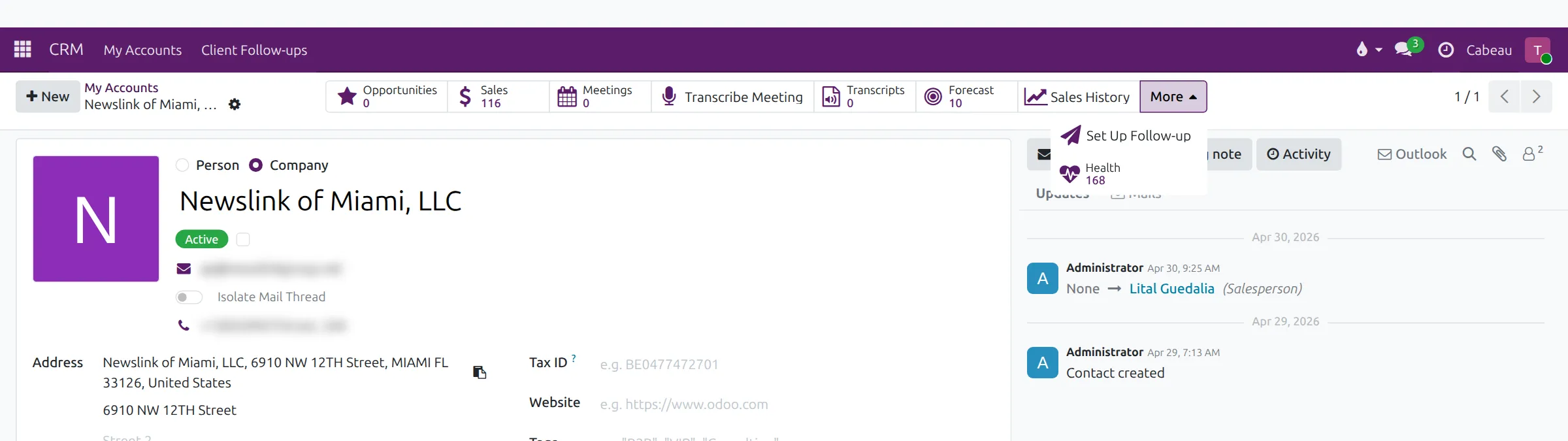
Follow-ups email a customer contact for you on a schedule until they reply. Activities are the calls, emails and to-dos the Hub reminds you about.
Transcript
- This video covers client follow-ups and activities, the two ways the Hub keeps your next steps from slipping.
- CRM, Client Follow-ups lists your automatic follow-up sequences, with the contact, the interval, how many have been sent, and the next send.
- A follow-up emails the contact from your address, one step at each interval, up to five times. It stops when the contact replies.
- To start one, open the account, select More, then Set Up Follow-up. Then choose the contact and the interval, and select Start.
- Activities are the calls, emails and to-dos the Hub reminds you about. Plan one from the Activity button on any account.
- The clock in the top bar counts what is late, due today and coming up, wherever you are in the Hub.
- The Activities shortcut on your dashboard lists everything overdue or due today. Mark each one done as you finish it.
- That is follow-ups and activities. You now know your way around the Hub as an Account Manager.
Client follow-ups
Section titled “Client follow-ups”CRM > Client Follow-ups lists your follow-ups.

Columns: Client Contact, Sender, Interval, Interval Unit, Sent, Step Count, Next Send At and Status.
A follow-up emails the contact from your address, one step at each interval, up to five times. It stops when the contact replies, or when you select Stop.
Start a follow-up from an account
Section titled “Start a follow-up from an account”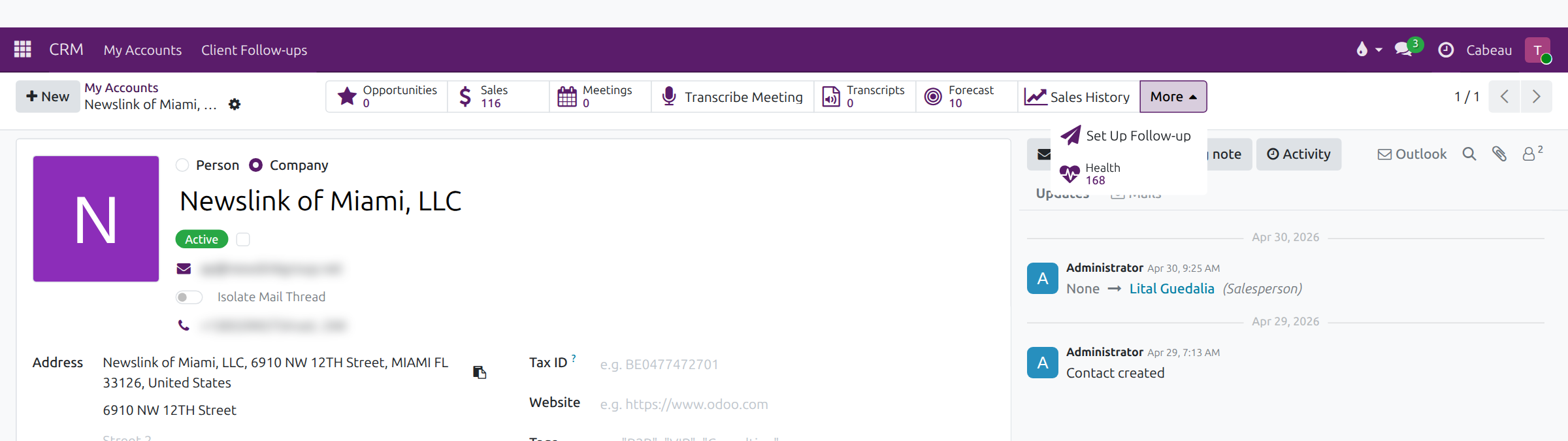
On the account, open More > Set Up Follow-up. The follow-up is created as soon as you select it, ready for you to choose the contact, interval and steps, then Start it.
Activities
Section titled “Activities”- The Activities shortcut on your dashboard opens My Activities, filtered to overdue and today.
- The clock in the top bar counts what is late, due today and coming up.
- Plan the next step on any account with Activity in the chatter.