
Accounts
CRM > All Accounts lists every account across all reps. Account Managers see only their own accounts under My Accounts; you see them all.
Transcript
- This video covers accounts. As VP of Sales, you see every account across every rep.
- CRM, All Accounts lists every B2B account synced from NetSuite. E-commerce customers are hidden by default.
- The activities column shows what is due on each account, such as a reach out because the account is at risk.
- Open the filter menu for My accounts, NetSuite customers or prospects, and group by territory, channel, tier or primary AM.
- Type in the search bar to find an account by name.
- Open the account. The buttons along the top count its opportunities, sales, meetings, transcripts, forecast lines and pending change requests.
- More holds sales history, follow-ups and the account health score.
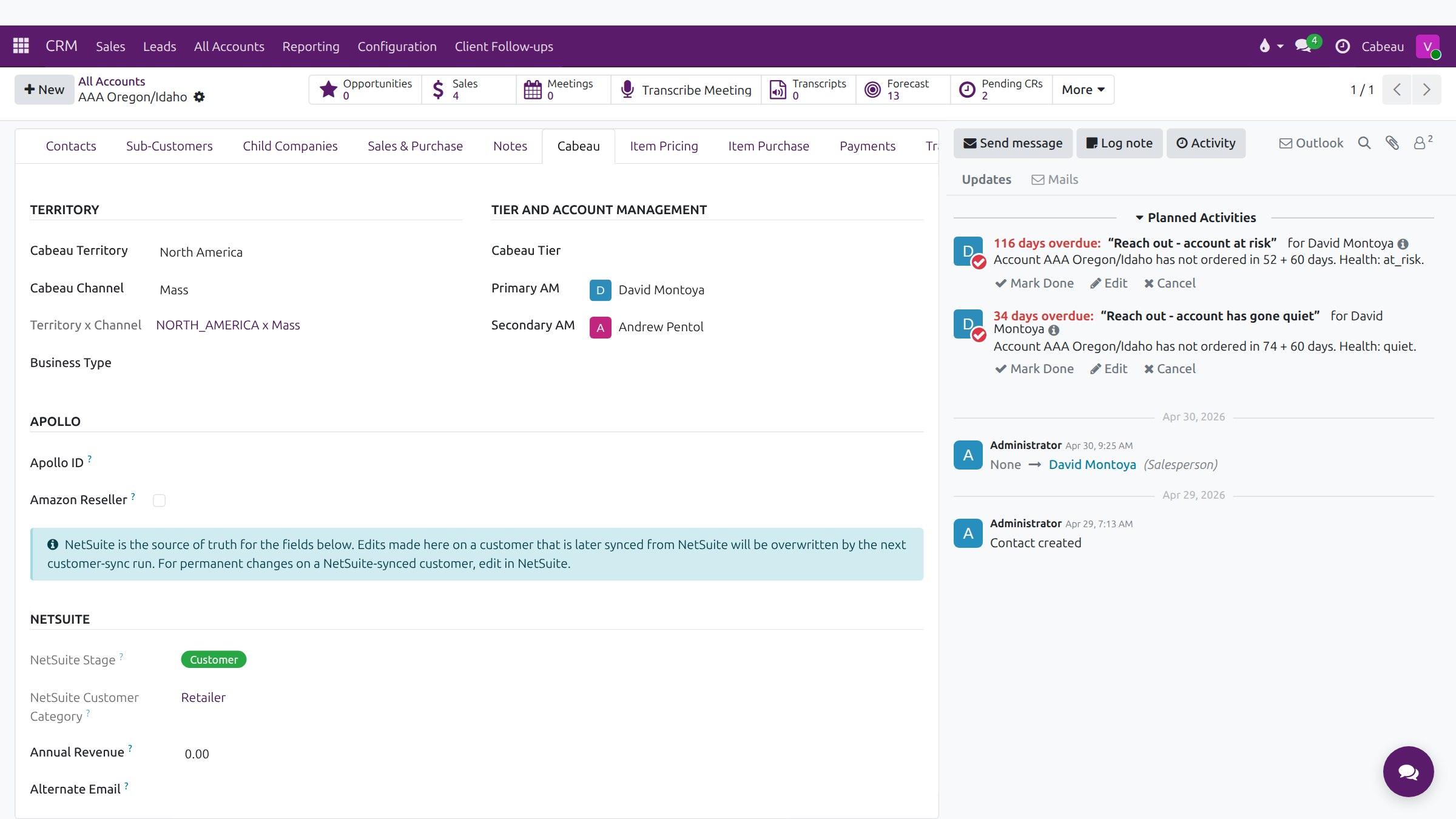
- The Cabeau tab shows territory, channel, tier and the primary and secondary account managers.
- Item Pricing lists this customer's prices, mirrored from NetSuite. When another rep changes a price here, it comes to you for approval.
- The Forecast tab holds the monthly targets for this account.
- On the right, planned activities flag what needs doing. Here, reach outs because this account is at risk and has gone quiet.
- Below them, the account history records every change and message, with who made it and when.
- That is accounts. Next, the pipeline and leads.
The account list
Section titled “The account list”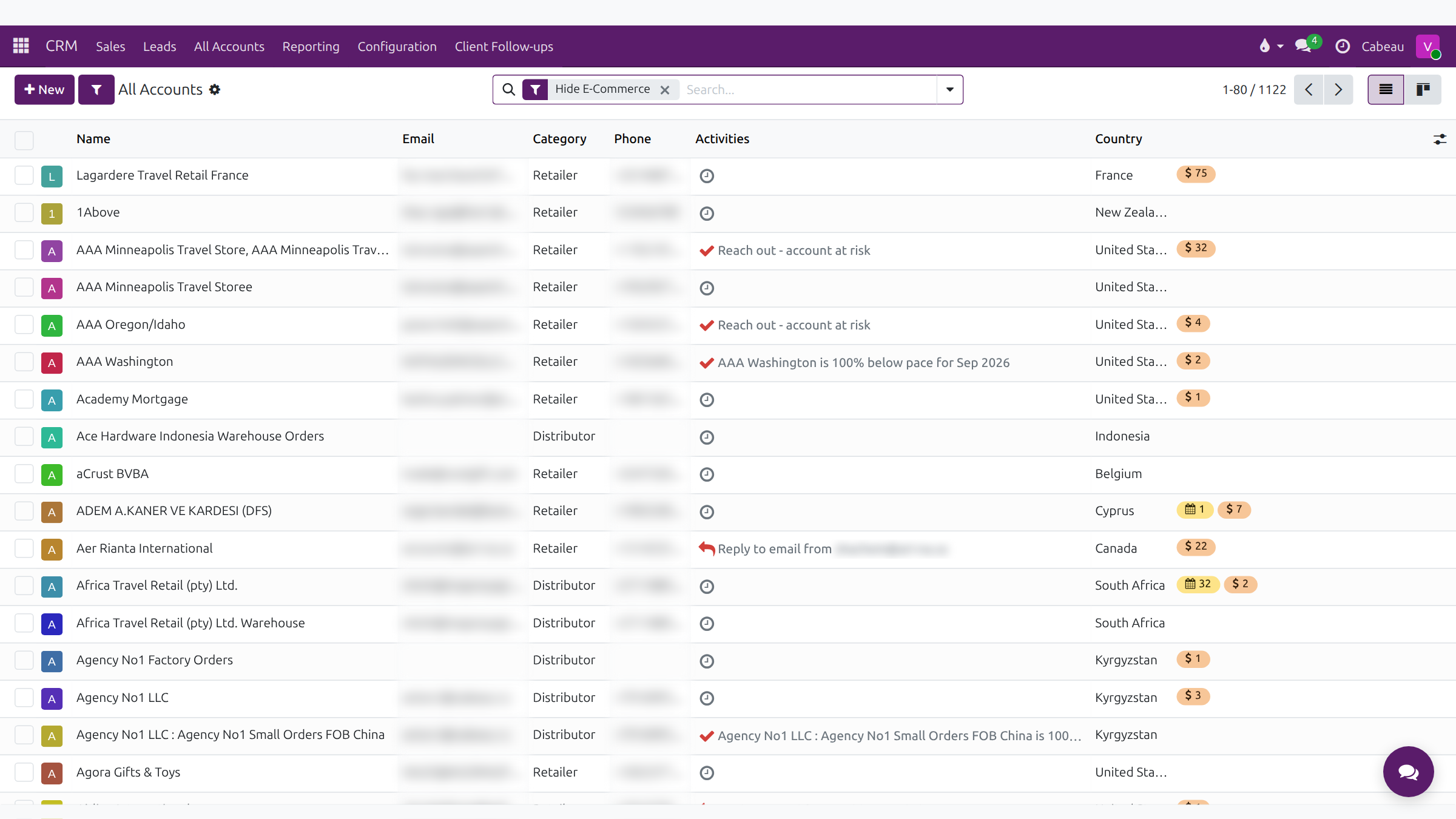
The list opens with the Hide E-Commerce filter on, so consumer accounts from the web shops stay out of the way. Columns are Name, Email, Category (Retailer or Distributor), Phone, the next Activity and Country.
The Activities column tells you what is due next on each account, for example Reach out - account at risk, an account running below its forecast pace, or a customer email waiting for a reply.
Filter and group
Section titled “Filter and group”Open the search options to filter and group the list.
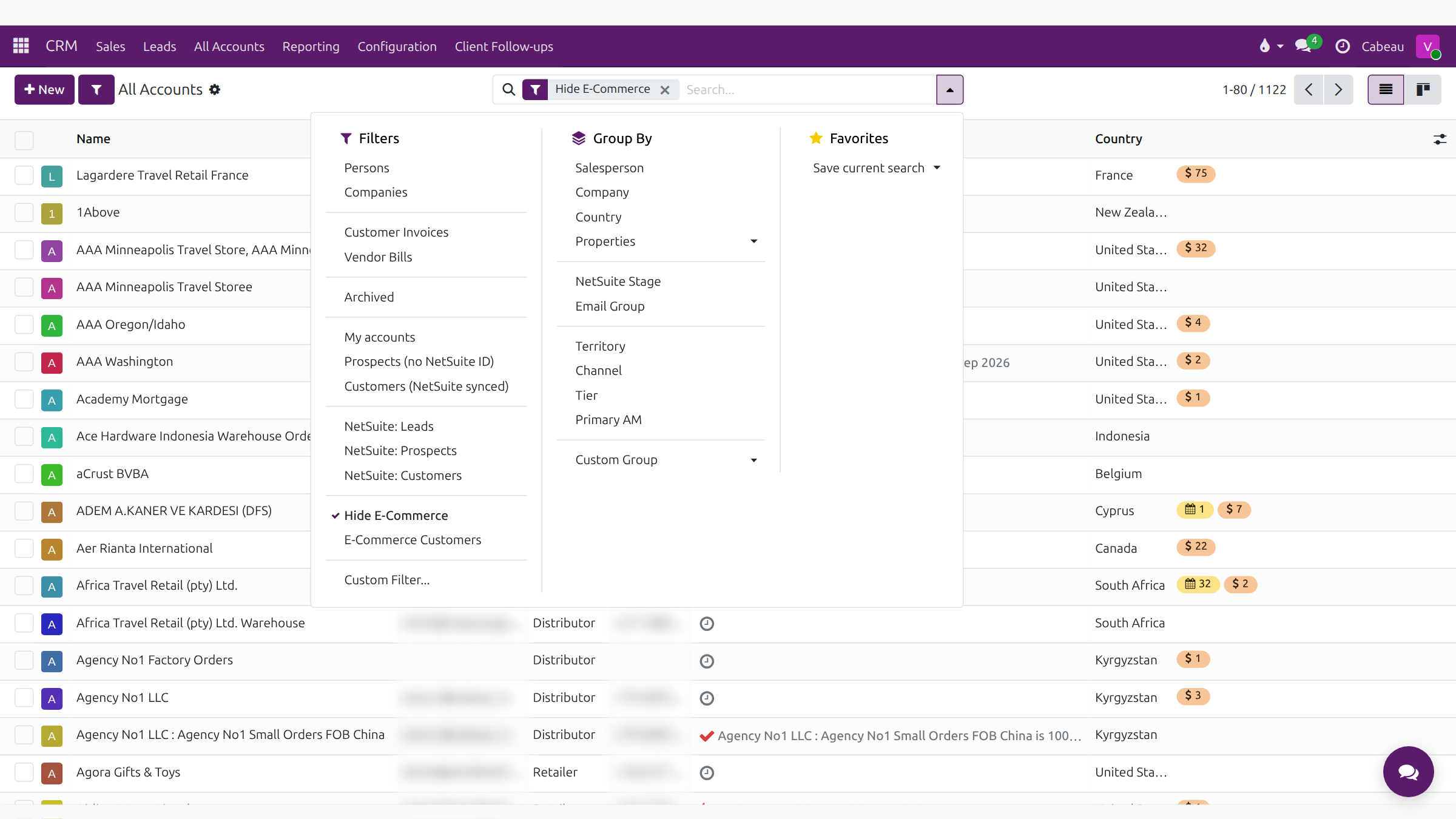
- Filters: Persons, Companies, My accounts, Prospects (no NetSuite ID), Customers (NetSuite synced), NetSuite Leads, Prospects or Customers, Hide E-Commerce, E-Commerce Customers, Archived.
- Group by: Salesperson, Country, NetSuite Stage, Territory, Channel, Tier, Primary AM and more.
The account record
Section titled “The account record”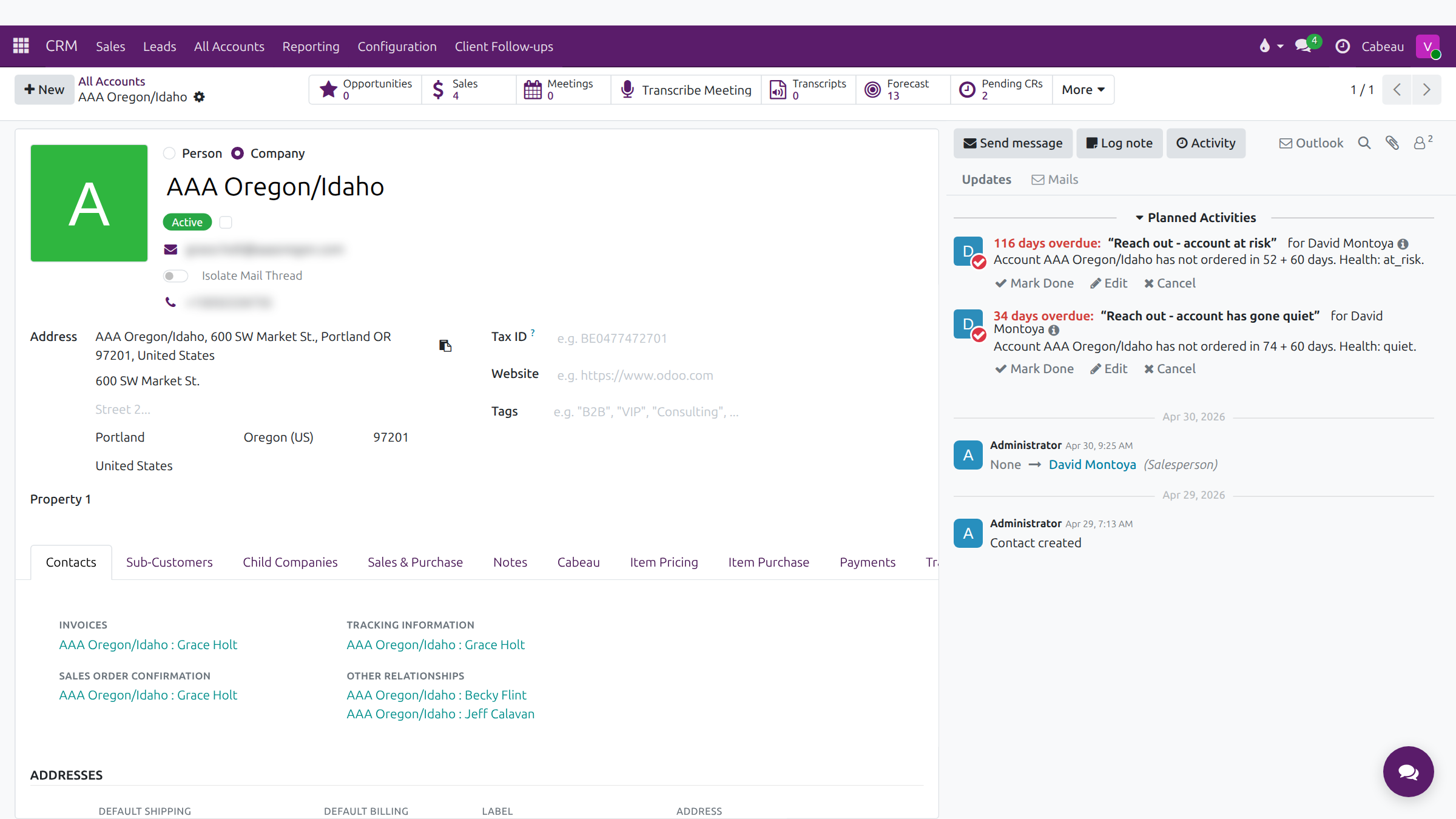
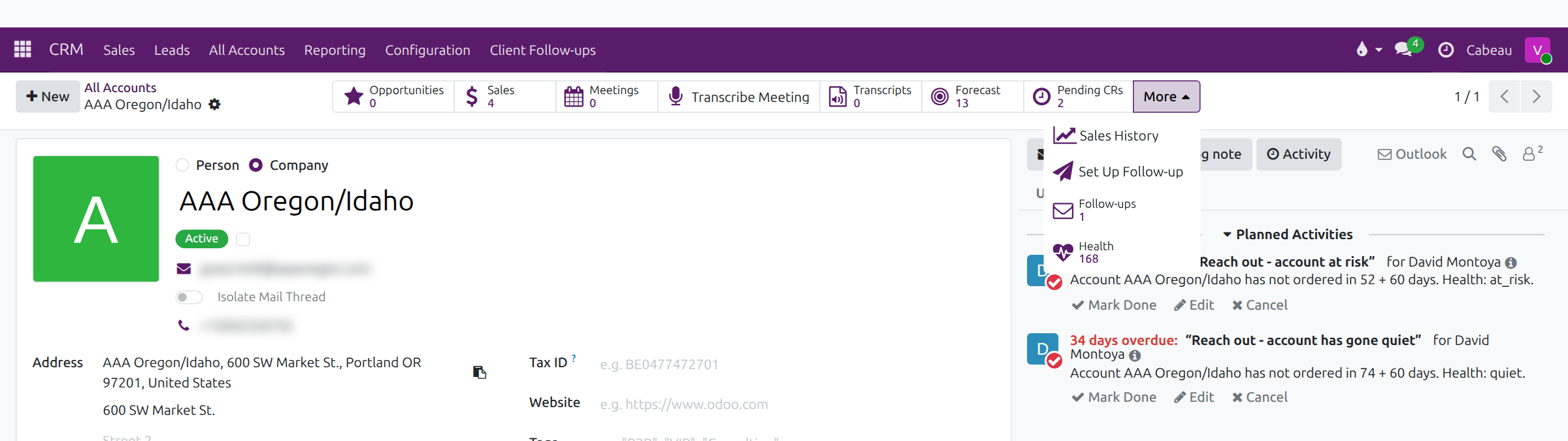
Smart buttons along the top: Opportunities, Sales, Meetings, Transcribe Meeting, Transcripts, Forecast, Pending CRs (change requests waiting for you), and More for Sales History, Set Up Follow-up, Follow-ups and the Health score.
Tabs:
| Tab | What it holds |
|---|---|
| Contacts | Invoice, tracking and order confirmation contacts, addresses (billing, shipping, ship-to) and contact cards |
| Sub-Customers, Child Companies | Accounts that sit under this one |
| Sales & Purchase | Salesperson, payment terms, pricelist and order defaults |
| Notes | Internal notes |
| Cabeau | Territory, channel, tier, primary and secondary AM, Apollo and NetSuite details |
| Item Pricing | Customer-specific prices |
| Item Purchase, Payments | What the customer buys and pays |
| Transcripts | Meeting transcripts for the account |
| Forecast | Monthly targets for the account |
| Order Cadence | How often the account orders |
Item pricing
Section titled “Item pricing”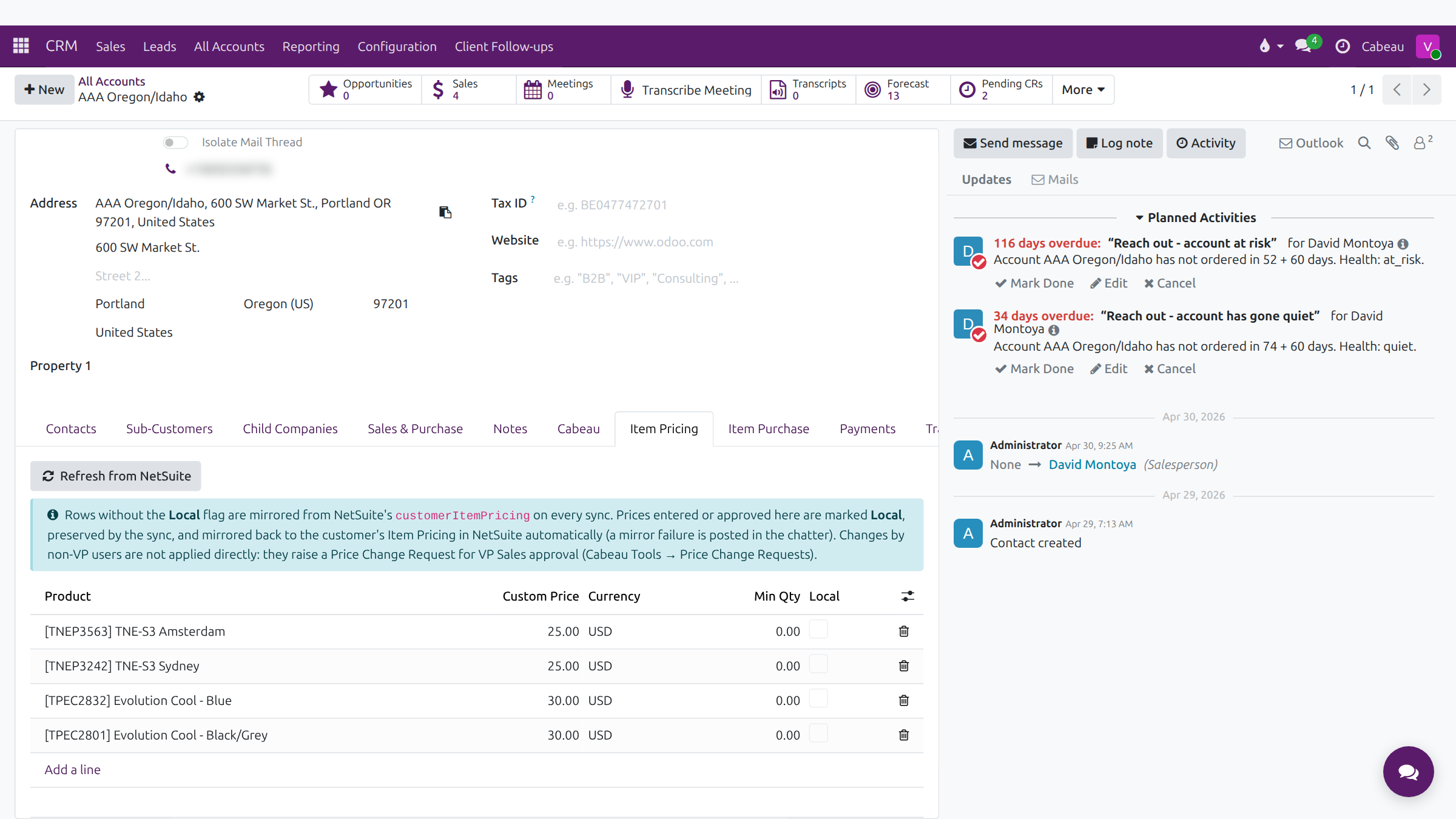
- Rows without the Local flag mirror NetSuite’s customer pricing on every sync. Refresh from NetSuite pulls them now.
- Prices entered or approved in the Hub are marked Local. The sync keeps them and copies them back to NetSuite. If that copy fails, a message appears in the account’s chatter.
- When anyone other than the VP changes a price, the Hub raises a price change request for you to approve. See Approvals.
The chatter
Section titled “The chatter”The right-hand panel holds the account’s history: emails, notes, changes and planned activities. Use Send message, Log note or Activity, and Outlook for the mail thread. Planned activities such as Reach out - account at risk show who they are for and how overdue they are, with Mark Done, Edit and Cancel.