
Pipeline
The CRM app opens on your pipeline board. Every lead and opportunity you own sits in one stage column.
Transcript
- This video covers your pipeline in Cabeau Hub, where every lead and opportunity moves from first contact to closing.
- Open C R M from the apps menu and your pipeline appears as a board. Each column is a stage.
- The header of each column shows the expected revenue in that stage. Narrow columns are folded, and open with a click.
- Cards found through Apollo carry an Apollo tag and a fit score. You move a card to the next column as the deal progresses.
- The buttons at the top right switch the board to a list, calendar, pivot table, graph or activity view.
- Click a card to open the lead. The bar at the top shows its stage.
- Below the name sit expected revenue, probability, the contact, the salesperson and the expected closing date.
- Enrich fills in company and contact details from Apollo. New Quotation starts a quote for this lead.
- Convert to Customer turns the lead into a customer account. Won and Lost close it either way.
- The tabs hold notes, contacts and meeting transcripts. Log notes and plan activities in the panel on the right.
- That is your pipeline. Next, finding new leads with Apollo.
Stages
Section titled “Stages”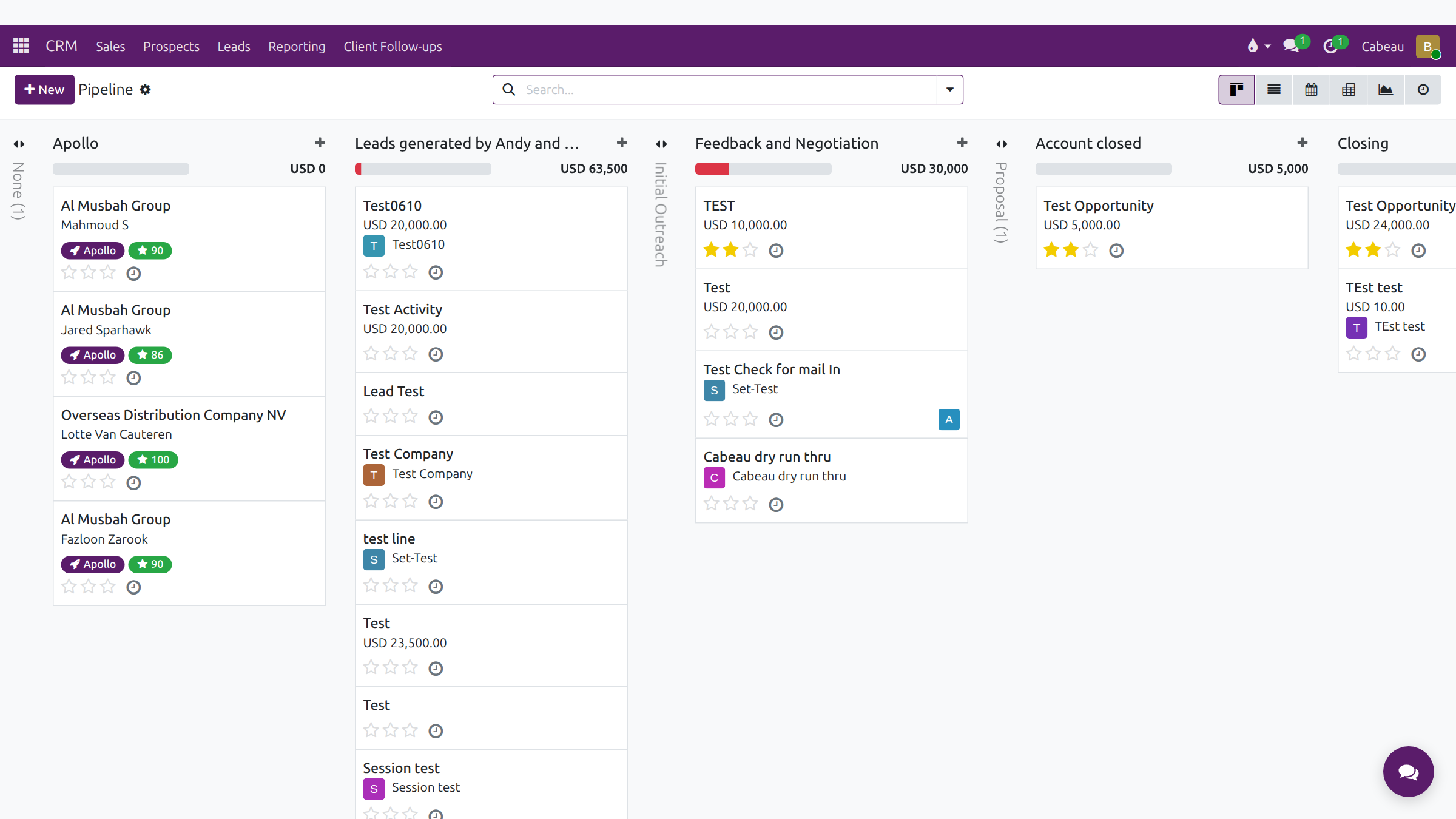
| Stage | Use it for |
|---|---|
| Apollo | Contacts sourced by Apollo, not yet worked |
| Leads generated by Andy and Lital | Leads the team found directly |
| Initial Outreach | First contact made |
| Feedback and Negotiation | The prospect is engaged and terms are being discussed |
| Proposal | A proposal or quotation is out |
| Closing | The deal is about to close |
| Account closed | The account is opened as a customer |
| Post Sales | Follow-through after the first order |
| Leads generated by Apollo | Apollo leads accepted into the pipeline |
Drag a card to the next column to move it on. Folded columns open with a click. Each column header shows its expected revenue total. Apollo cards carry an Apollo tag and a fit score.
Switch views at the top right: Kanban, List, Calendar, Pivot, Graph or Activity.
The lead record
Section titled “The lead record”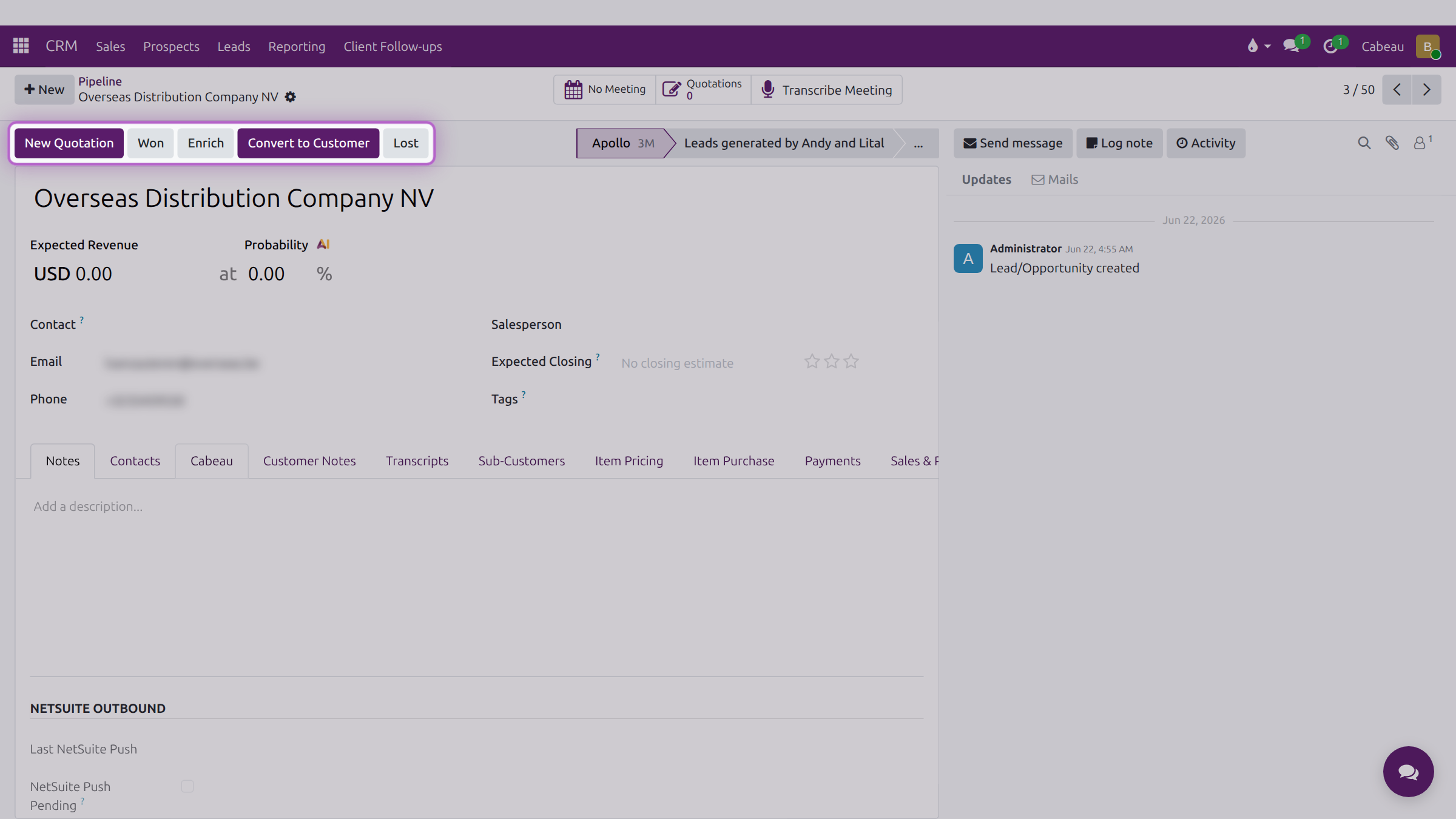
| Button | When to use it |
|---|---|
| New Quotation | You are ready to send prices |
| Won | The prospect has agreed |
| Enrich | Fill in company details automatically |
| Convert to Customer | Turn the won lead into a customer account |
| Lost | The prospect has declined; record the reason |
Keep Expected Revenue, Expected Closing and the priority stars up to date: they drive the pipeline totals on your dashboard. The Probability field shows the AI’s estimate beside it.
The Cabeau tab records territory, channel, business type and the qualification checks (retail focus, no Amazon resale, distribution coverage, legitimacy verified). Complete it before converting, because it decides which Account Manager inherits the customer.