
Pipeline and leads
The CRM app opens on the pipeline board. As VP you see every rep’s opportunities, not only your own.
Transcript
- This video covers the pipeline and leads, from new prospects through to closing.
- The CRM app opens on the pipeline. Each column is a stage, from leads generated by Apollo or by the team, through outreach and negotiation, to closing.
- The bar under each stage shows its expected revenue. Cards carry the company, the contact, a priority in stars, and the owner.
- Leads sourced through Apollo carry an Apollo tag and a fit score.
- Switch to list, calendar, pivot or graph views from the top right.
- Open a lead to see its expected revenue, the probability estimated by the Hub's AI, the contact and the salesperson.
- As VP, you assign a lead by changing its salesperson. The new owner sees it in their pipeline.
- The buttons above start a quotation, mark the lead won or lost, enrich it with Apollo, or convert it to a customer.
- The stage bar on the right shows where the lead sits. The Cabeau tab holds its territory, channel and qualification checks.
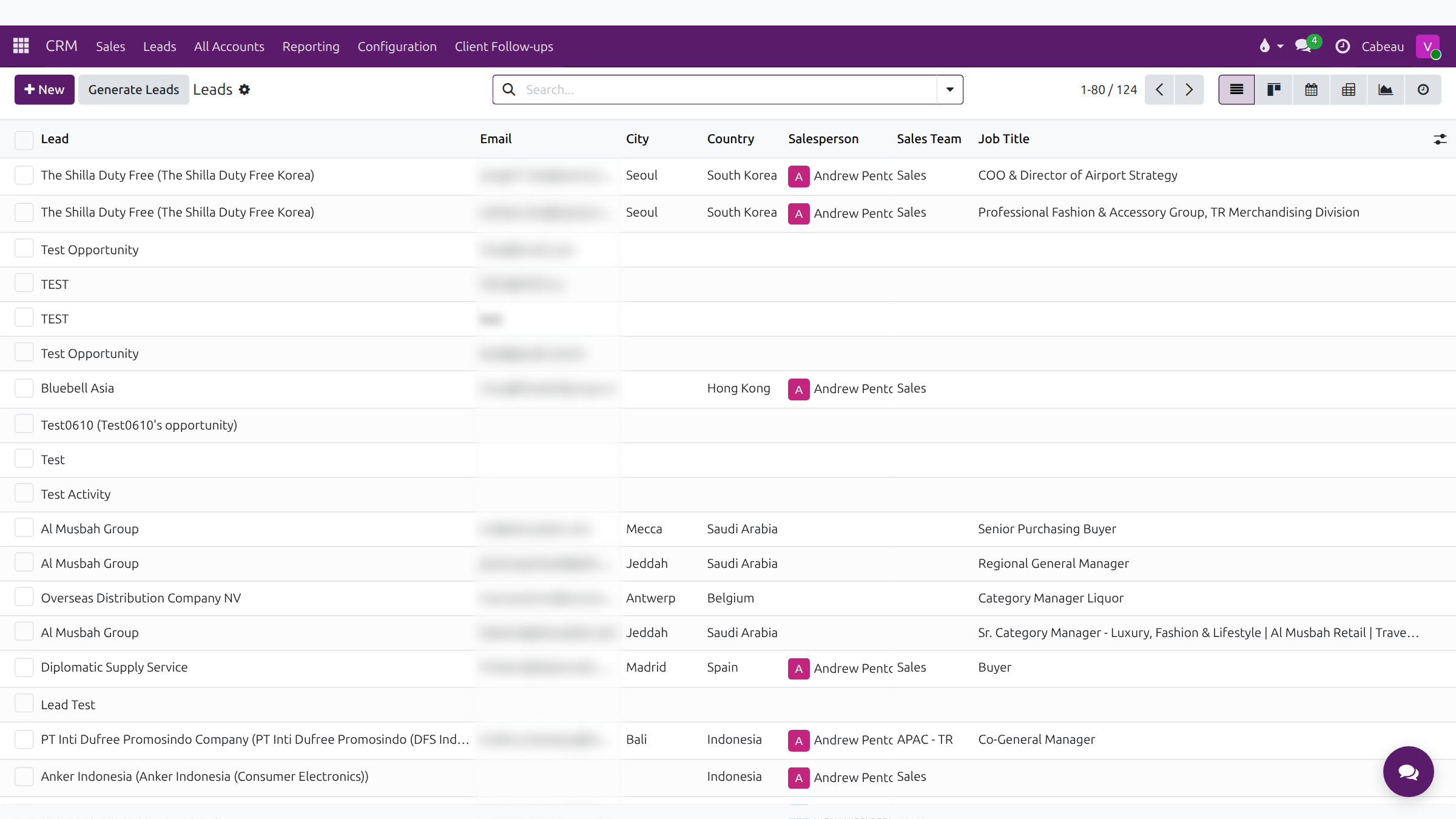
- CRM, Leads lists every lead in one table, with the country, salesperson and sales team.
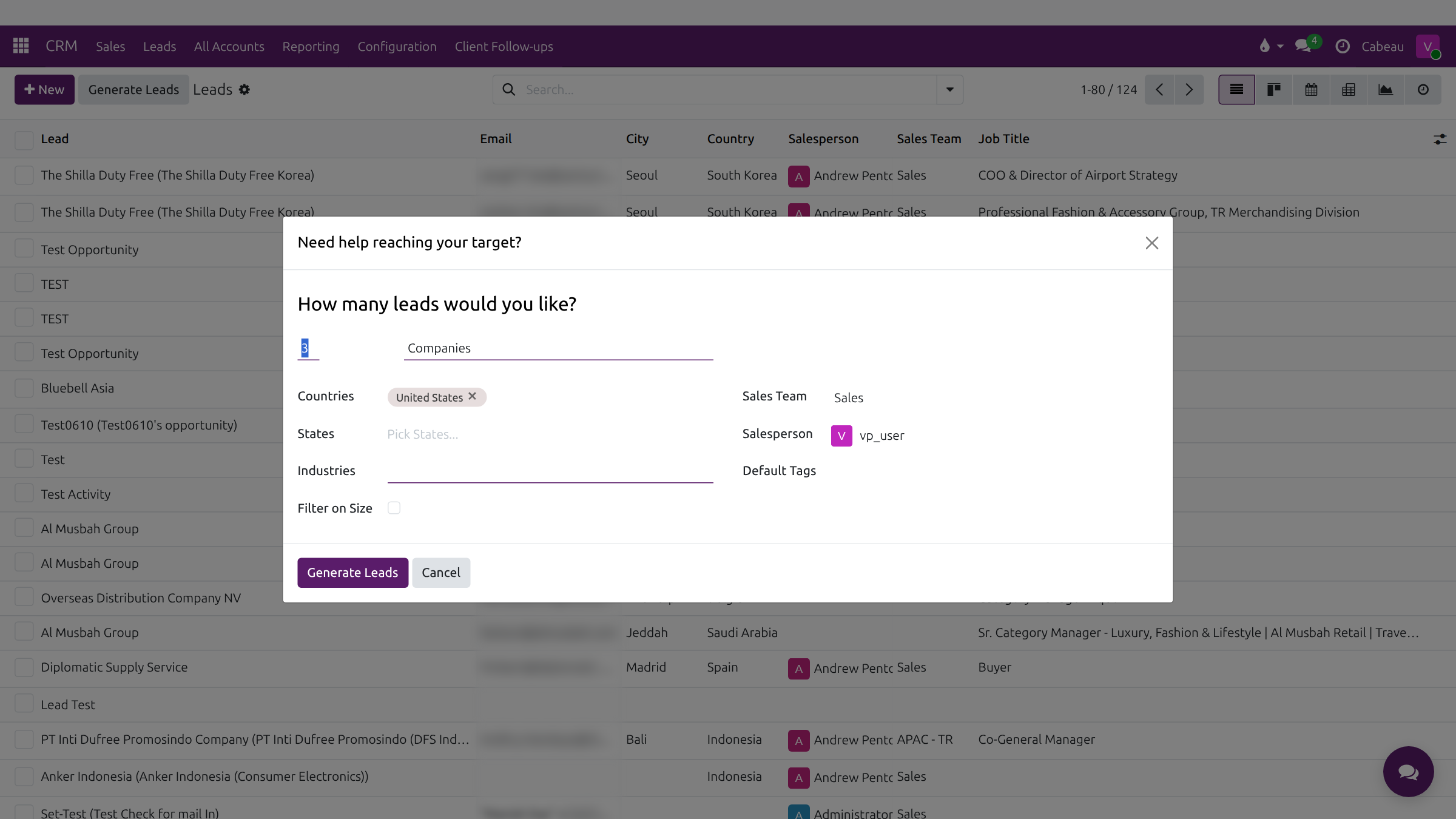
- Generate Leads asks how many companies you want, and in which countries, states and industries.
- Choose the salesperson the new leads go to, then Generate Leads. Here, we cancel.
- That is the pipeline and leads. Next, the annual forecast.
The pipeline board
Section titled “The pipeline board”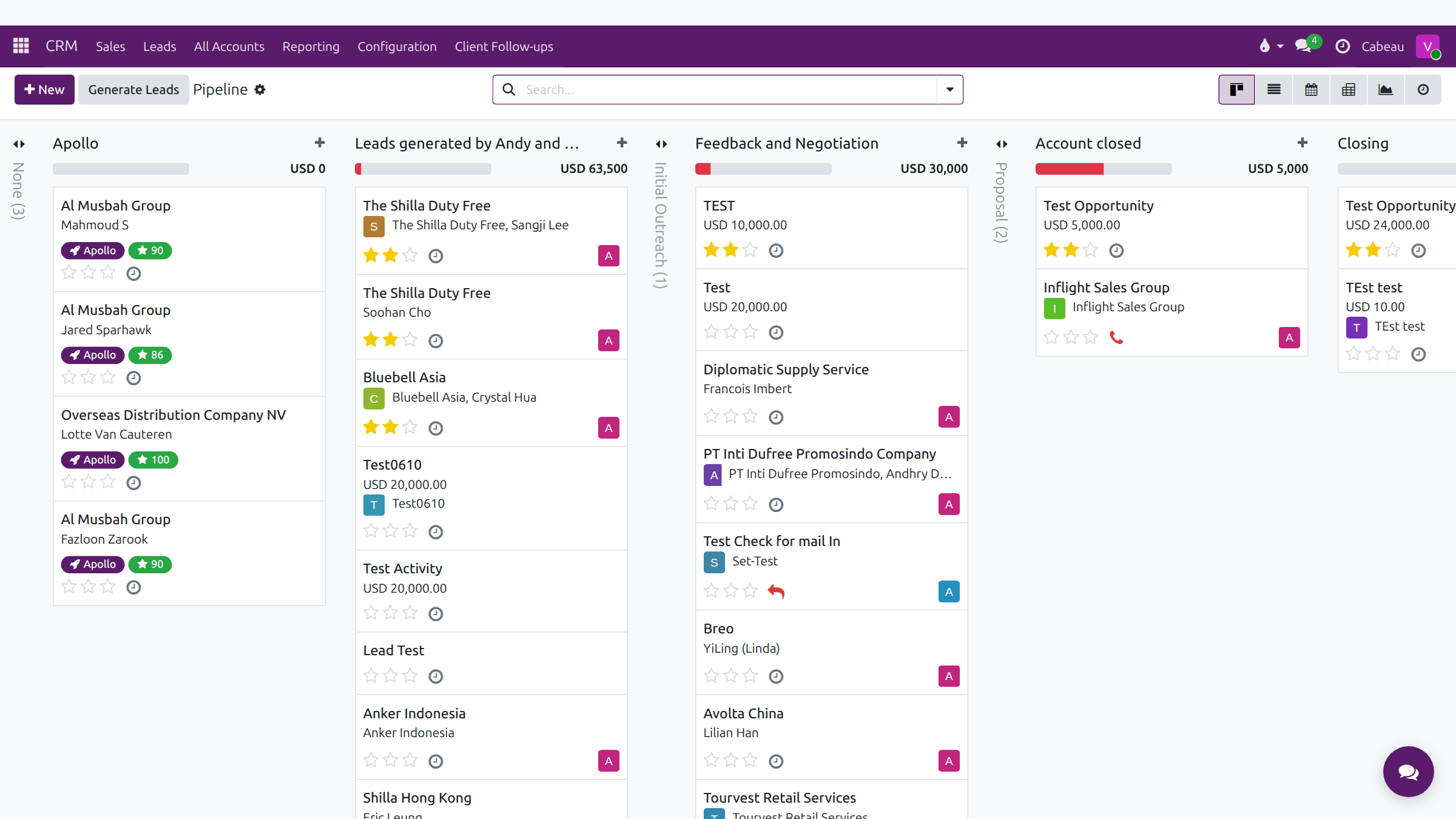
Stages run left to right: Apollo, Leads generated by Andy and Lital, Initial Outreach, Feedback and Negotiation, Proposal, Account closed, Closing, Post Sales and Leads generated by Apollo. Folded stages show as narrow columns; click one to open it.
- Each column header shows the total expected revenue and a progress bar.
- Each card shows the lead, the contact, priority stars, the next activity and the owner.
- Cards that came from Apollo carry an Apollo tag and a green fit score.
- Switch views at the top right: Kanban, List, Calendar, Pivot, Graph or Activity.
A lead record
Section titled “A lead record”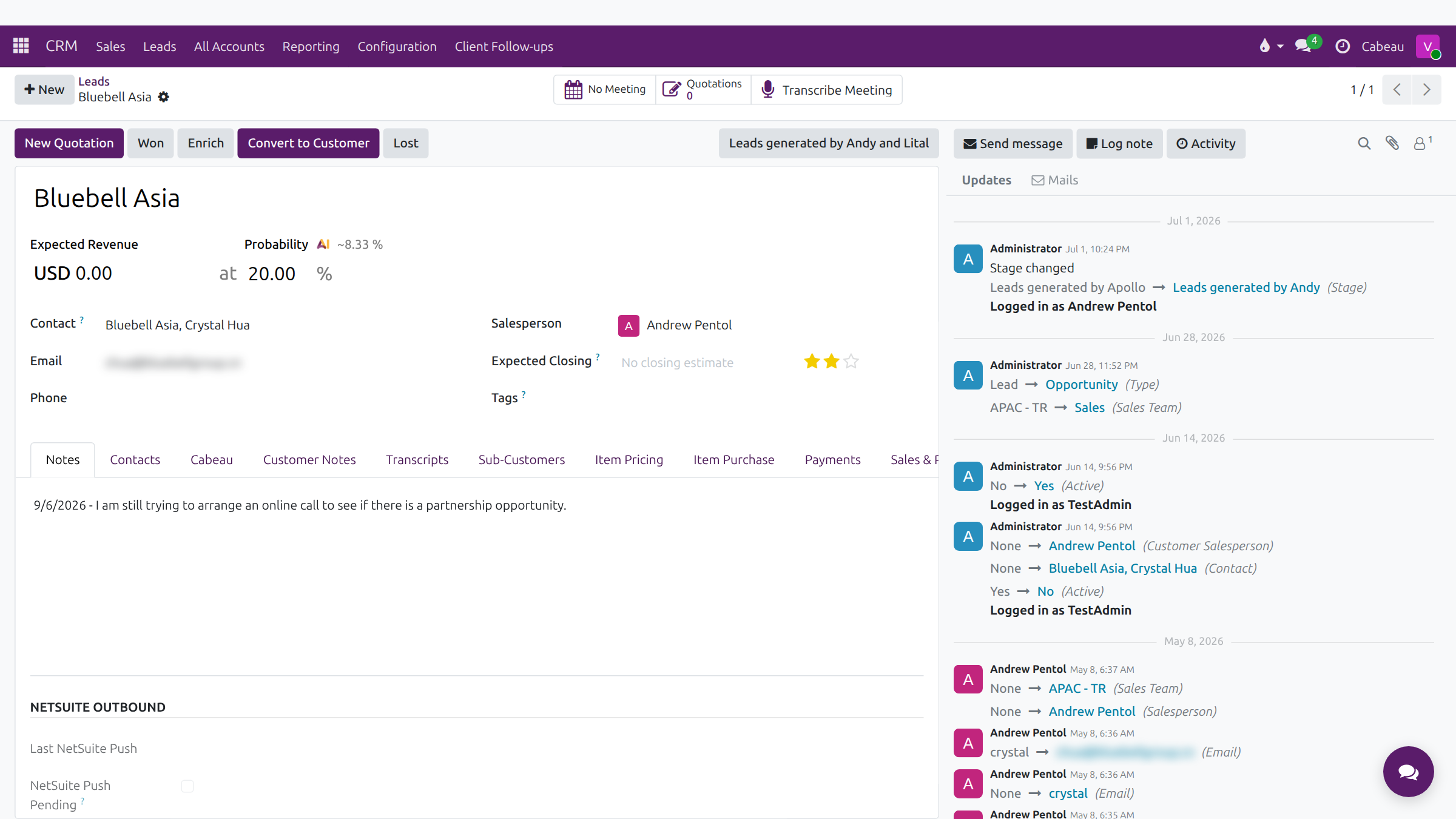
| Button | What it does |
|---|---|
| New Quotation | Starts a quotation for the lead |
| Won | Marks the opportunity won |
| Enrich | Fills in company details automatically |
| Convert to Customer | Turns the lead into a customer account |
| Lost | Closes it as lost, with a reason |
The record holds Expected Revenue, Probability (with the AI’s own estimate beside it), Contact, Email, Phone, Salesperson, Expected Closing, priority and Tags. The Cabeau tab records territory, channel, business type, the qualification checks (retail focus, no Amazon resale, distribution coverage, legitimacy verified) and the Apollo source.
Assign a lead to a rep
Section titled “Assign a lead to a rep”Open the lead and choose the rep in Salesperson. The lead moves into that rep’s pipeline. As VP you can assign a lead to anyone on the team.
The leads list
Section titled “The leads list”CRM > Leads lists every lead with email, city, country, salesperson, sales team and job title.
Generate leads
Section titled “Generate leads”Generate Leads, on the Leads list and the pipeline, asks how many leads you want and narrows them by companies, countries, states, industries and company size. Choose the sales team, the salesperson to receive them, and default tags, then select Generate Leads.
Business Development finds most new leads through Apollo.