
How forecasting works in the Hub
Account ManagerBusiness DevelopmentVP of Sales
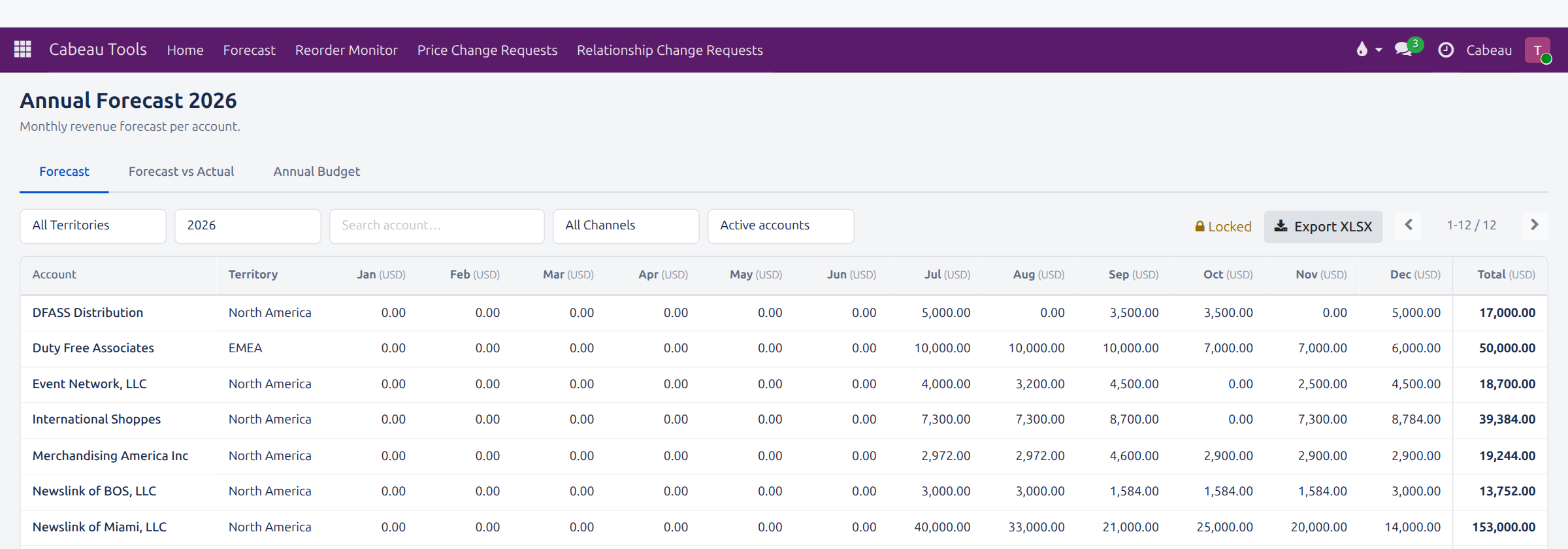
The forecast lives in the Hub’s forecast sheet: one row per account, one column per month.
Enter a forecast (Account Manager)
Section titled “Enter a forecast (Account Manager)”Transcript
- This workflow shows how you change a monthly forecast, and what happens to the change.
- The forecast sheet has one row per account and one column per month. The year is locked against direct edits.
- Click the month you want to change. Here, December for Newslink of Tampa.
- Type the new amount and press Enter.
- The figure does not change straight away. The cell is shaded while the VP of Sales reviews your request.
- Forecast, Change Requests lists your requests, with the month, the old and new amounts, and the status.
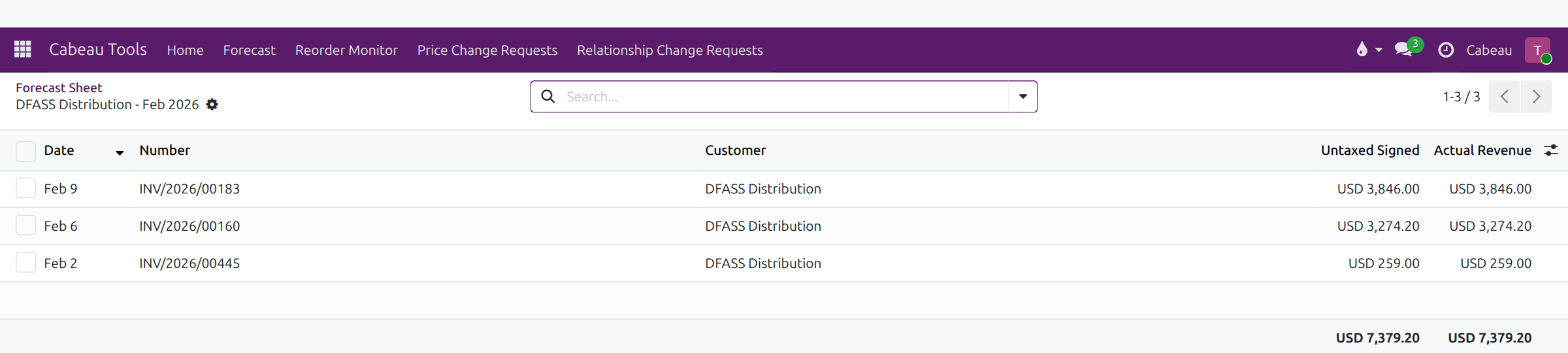
- Back on the sheet, Forecast vs Actual shows actual sales under each forecast. Click an actual figure to see the invoices behind it.
- That is how you propose a forecast change. Next, the approval.
- Open Forecast on your dashboard.
- Click the month cell for the account, type the figure and press Enter. Escape cancels.
- The year is locked, so your figure becomes a change request for the VP of Sales straight away. The cell shows your proposed figure, shaded and in italics, until it is decided.
- Follow it under Cabeau Tools > Forecast > Change Requests.
Approve it (VP of Sales)
Section titled “Approve it (VP of Sales)”Transcript
- This workflow shows how the VP of Sales approves a forecast change proposed by an account manager.
- Cabeau Tools, Forecast, Change Requests opens on everything waiting for you. Search for the account to find one request.
- Each row shows the account, the month, the previous amount, the proposed amount and who asked.
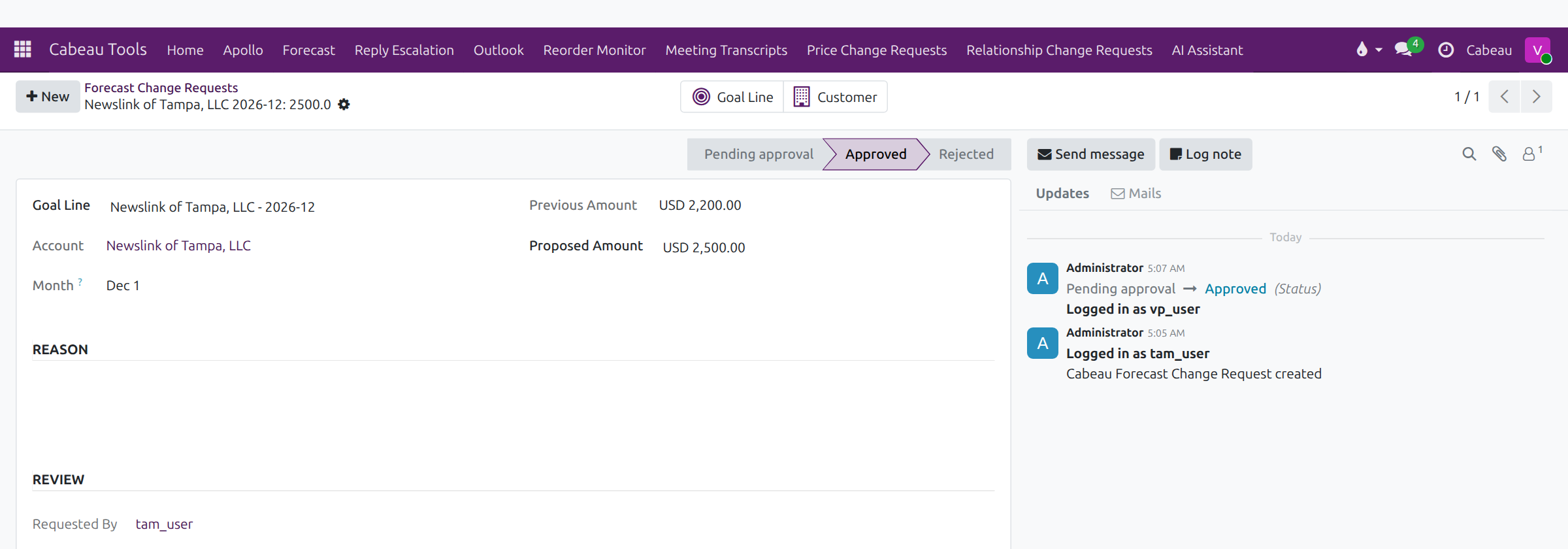
- Open the request. The previous and proposed amounts sit side by side, with the account and the month.
- Approve applies the new figure to the forecast. Reject keeps the old one. Either way, the account manager sees your decision.
- The status moves to Approved, and the review records who decided and when.
- On the forecast sheet, the new December figure now counts in the account's total.
- That is how a forecast change is approved.
The VP opens Cabeau Tools > Forecast > Change Requests, finds the account, reads the previous and proposed amounts, and selects Approve or Reject. An approved figure updates the forecast sheet. The Reason field is optional and often empty, so agree significant changes with the VP first.
Forecast against actuals
Section titled “Forecast against actuals”Forecast vs Actual puts actual sales under each month’s forecast with the variance. Click an actual figure to open the invoices behind it.
Annual budget
Section titled “Annual budget”The Annual Budget tab holds the budget per account and month, beside the forecast.
More detail: VP forecast, Account Manager forecast, approvals.