
Customer emails in the Hub
Account ManagerBusiness Development
Emails to and from a customer are filed on the account automatically from Outlook. Nobody copies them in by hand.
Transcript
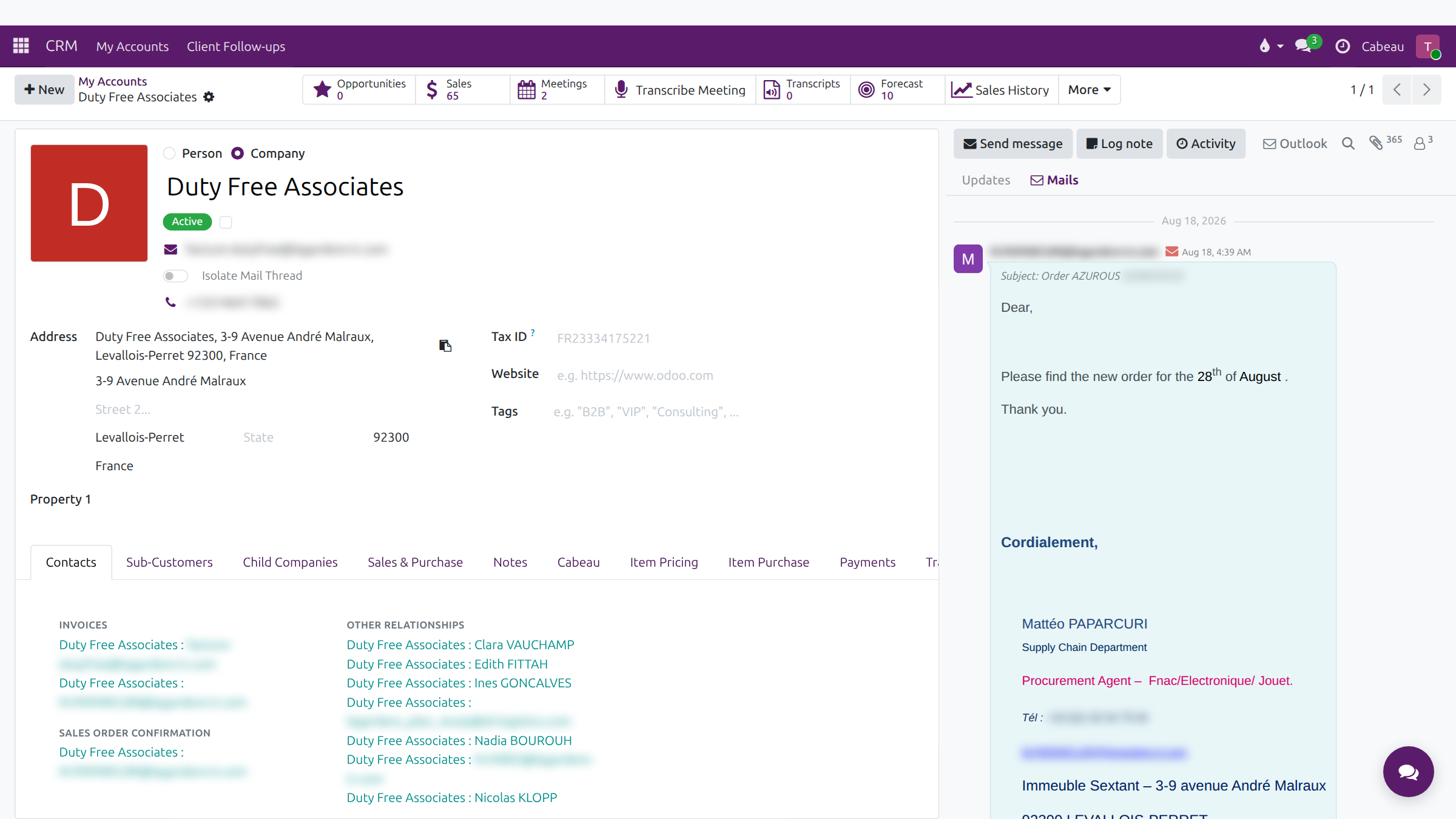
- This workflow shows where customer emails appear in the Hub.
- Emails sent to and from a customer are filed on the account automatically. Nobody copies them in by hand.
- In the panel on the right, the Mails tab shows only the emails. The badge counts them.
- Each email shows the sender, the date and the subject, with the full message underneath.
- Scroll down through the conversation. Load More brings in older emails.
- Updates, beside Mails, shows notes and changes to the account alongside the emails.
- The Outlook button opens the account's mail thread in your mailbox.
- That is where customer emails live.
Read the history
Section titled “Read the history”- Open the account.
- In the panel on the right, select Mails. The badge counts the emails.
- Each email shows sender, date and subject, with the full message underneath.
- Scroll for more; Load More brings in older emails.
- Updates shows notes and changes alongside the emails.
- Outlook opens the account’s thread in your mailbox.