Sales orders
Order list and filters
Section titled “Order list and filters”Sales > Orders, or Sales Orders on your dashboard.
| Role | Sees |
|---|---|
| VP of Sales | Every rep’s orders |
| Account Manager | Orders for your accounts and your territory and channel |
| Business Development | Confirmed orders, read only |
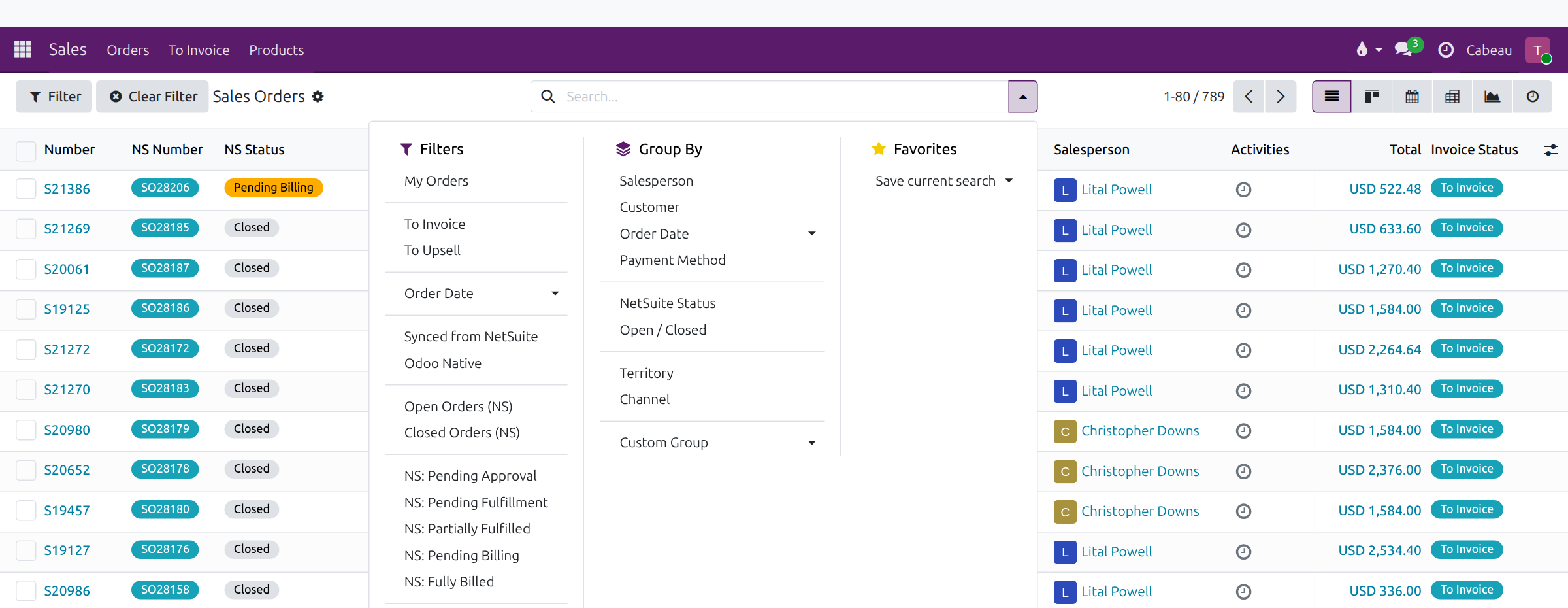
Open the search options (the arrow in the search bar):
- Filters: Open Orders (NS), Closed Orders (NS), NS: Pending Fulfillment, NS: Partially Fulfilled, NS: Pending Billing, NS: Fully Billed, My Orders, To Invoice and Order Date.
- Group by: Salesperson, Customer, Order Date, NetSuite Status, Open / Closed, Territory and Channel.
The Salesperson column shows who owns each order. Filter opens a quick dialog for customer, NetSuite status and date range; Clear Filter resets it.
Transcript
- This video shows how to narrow the sales order list to the orders you need.
- Sales, Orders lists every order synced from NetSuite. The Salesperson column shows who each order belongs to.
- Open the search options. Open Orders keeps only orders that are still open in NetSuite.
- Pending Fulfillment narrows that to orders not yet shipped. Filters in the same group add together.
- Group by Salesperson to see each rep's orders together. The VP sees every rep; reps see their own accounts.
- Remove a filter with the cross on its tag in the search bar.
- That is how to filter the order list.
Exporting orders to Excel
Section titled “Exporting orders to Excel”Every role can export.
- Filter the list first if you want a subset.
- Tick the box in the header, then Select all to include every order, not only the page.
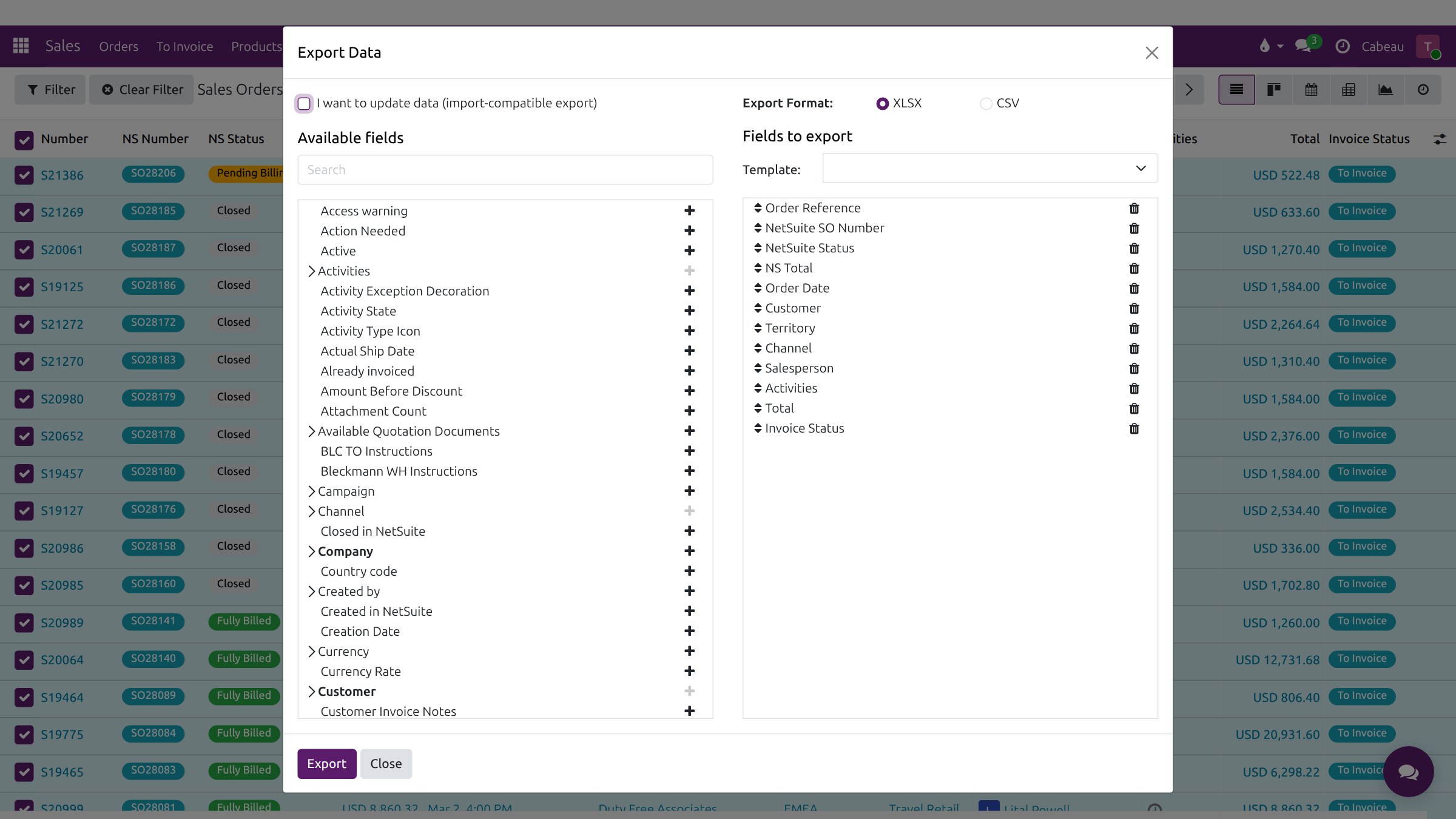
- Select Actions > Export. The columns on screen are pre-selected, including Channel; add more with the plus sign.
- Choose XLSX and select Export.
Transcript
- This video shows how to export your sales orders to Excel.
- Filter the list first if you only want some orders. Then tick the box at the top to select the page.
- Select all extends the selection to every order in the list, not just this page.
- Open Actions and choose Export.
- The columns from your list are already chosen, including Channel, Territory and Salesperson.
- Add any other field from the list on the left with its plus sign.
- Export downloads the file in Excel format, ready to filter or chart.
- That is how to export orders to Excel.
Downloading orders and invoices
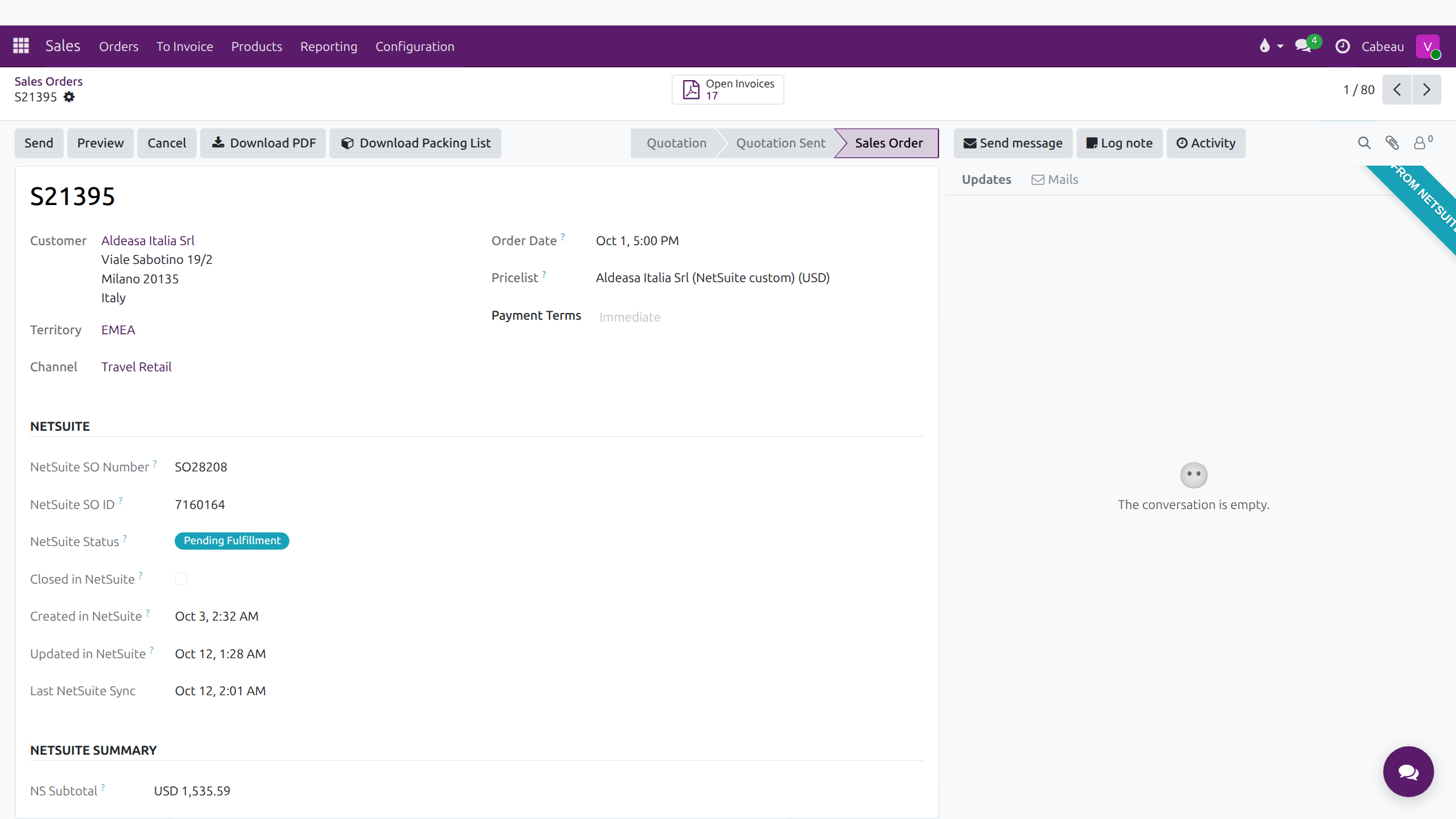
Section titled “Downloading orders and invoices”- On an order, Download PDF gives the sales order as a PDF in the NetSuite layout. Preview and Print are beside it.
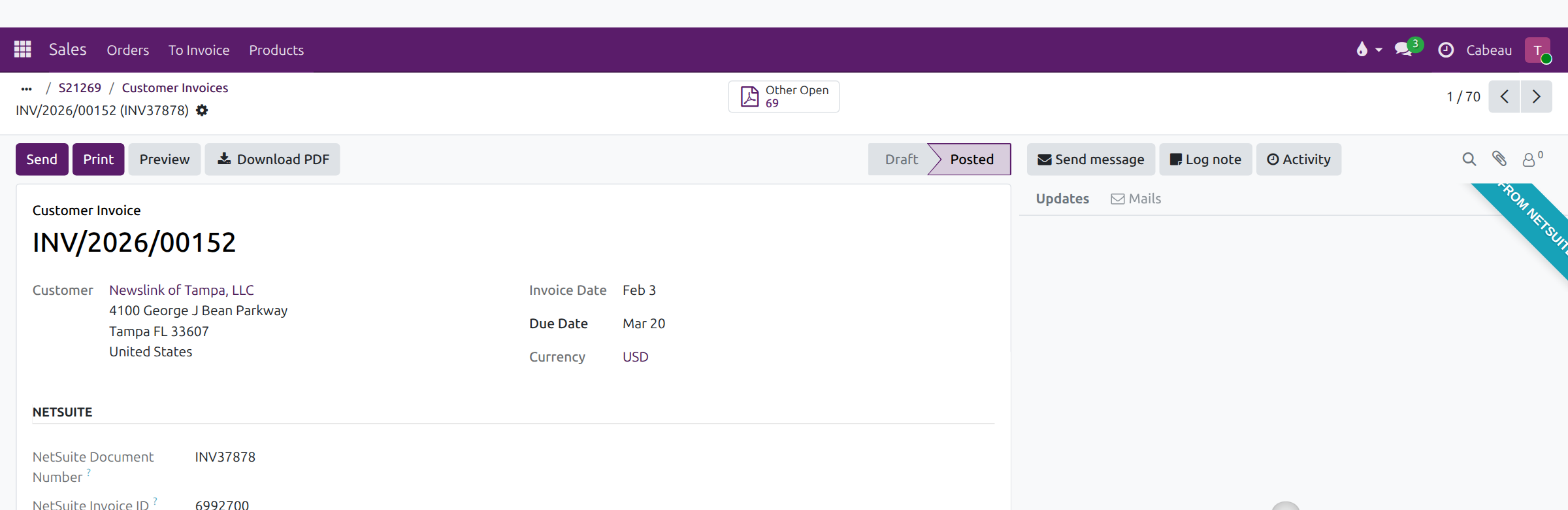
- Open Invoices lists the order’s invoices. On an invoice, Download PDF, or Print for the invoice with or without payment details. The invoice shows its Invoice Date and Due Date.
Transcript
- This video shows how to download a sales order or an invoice as a PDF.
- Open the order from Sales, Orders.
- Download PDF saves the order to your computer, ready to attach to an email.
- Open Invoices lists the invoices raised for this order. Open one.
- The invoice has its own Download PDF button, and Print offers the version with or without payments.
- That is how to download orders and invoices.
Packing list download
Section titled “Packing list download”On any order that came from NetSuite, Download Packing List sits beside Download PDF. The packing list shows the sales order number, sold to, ship from, customer PO, Incoterms, terms and the lines.
Transcript
- This video shows where to download the packing list for an order.
- Closed Orders in the search options lists orders that are closed in NetSuite. Open one.
- Download Packing List sits beside Download PDF. It appears on every order that came from NetSuite.
- Select it, and the packing list downloads as a PDF with the order number, ship to address and the lines.
- That is how to download a packing list.
How NetSuite sync works
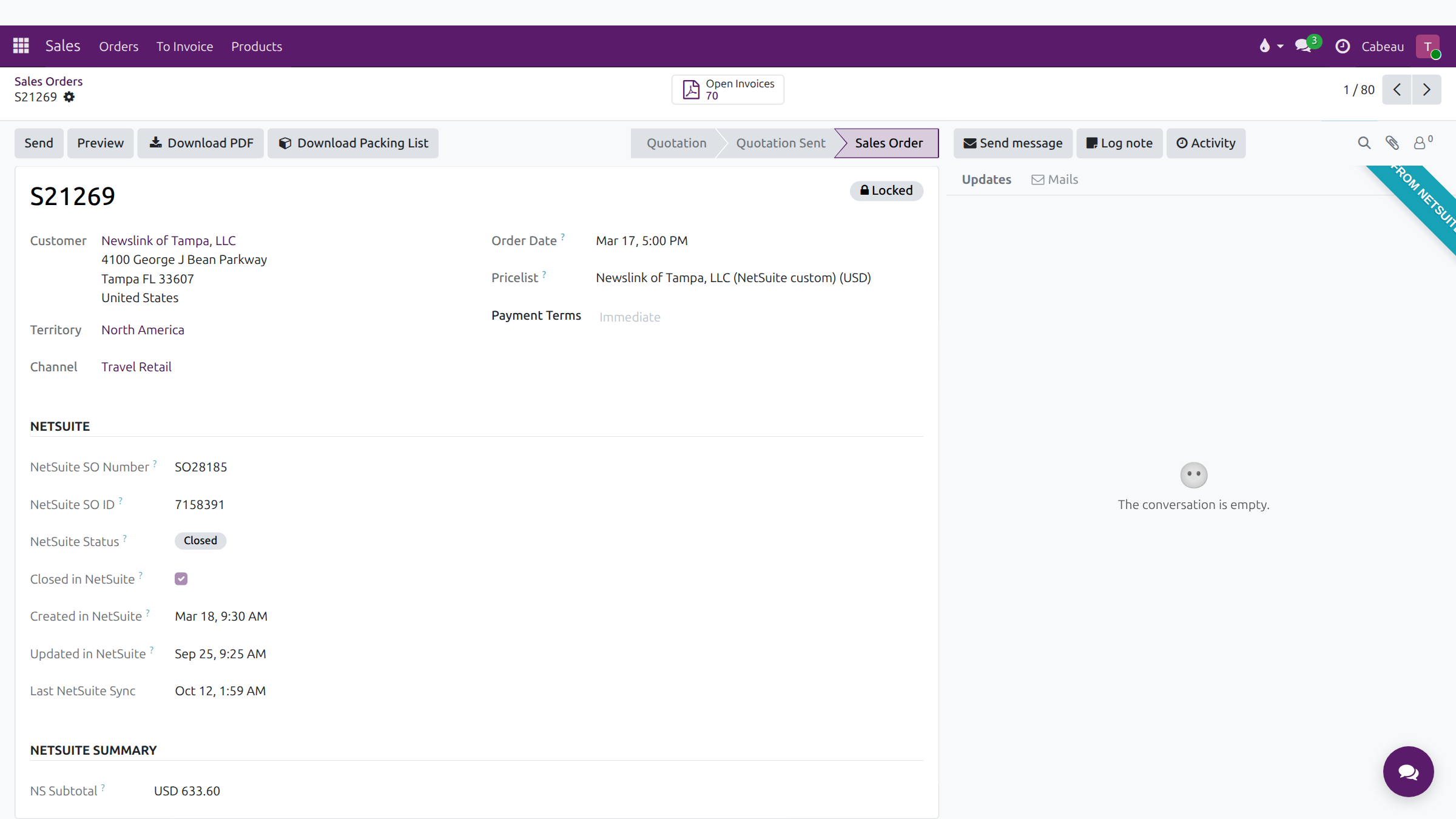
Section titled “How NetSuite sync works”NetSuite remains the source of truth until the migration completes. The Hub reads from it, so there are never two versions of a record.
- Orders carry a Synced from NetSuite ribbon. The NetSuite section shows the SO number, status, when the order was created and updated in NetSuite, and Last NetSuite Sync.
- Customers, invoices and payments come across on a schedule. Check the record’s last sync time if a figure looks out of date.
- Account fields on the Cabeau tab are overwritten by the next customer sync. Make permanent changes in NetSuite.
- Customer prices without the Local flag mirror NetSuite on every sync. Prices approved in the Hub are kept and copied back to NetSuite.
- Inventory shows Last Sync on every row.
Transcript
- This video explains how Cabeau Hub and NetSuite work together.
- Customers, sales orders, invoices, payments and stock come across from NetSuite on a schedule.
- A synced order carries a Synced from NetSuite ribbon, and its NetSuite number and status.
- Last NetSuite Sync shows when the order last came across. Check it when a figure looks out of date.
- Until the migration completes, NetSuite stays the source of truth, and the Hub reads from it.
- Fields marked as NetSuite fields are replaced on the next sync. Change them in NetSuite, not here.
- Customer prices follow the same rule, except prices marked Local, which the Hub keeps and sends back to NetSuite.
- That is how NetSuite sync works.