
New customer
Business Development
Adding a new customer 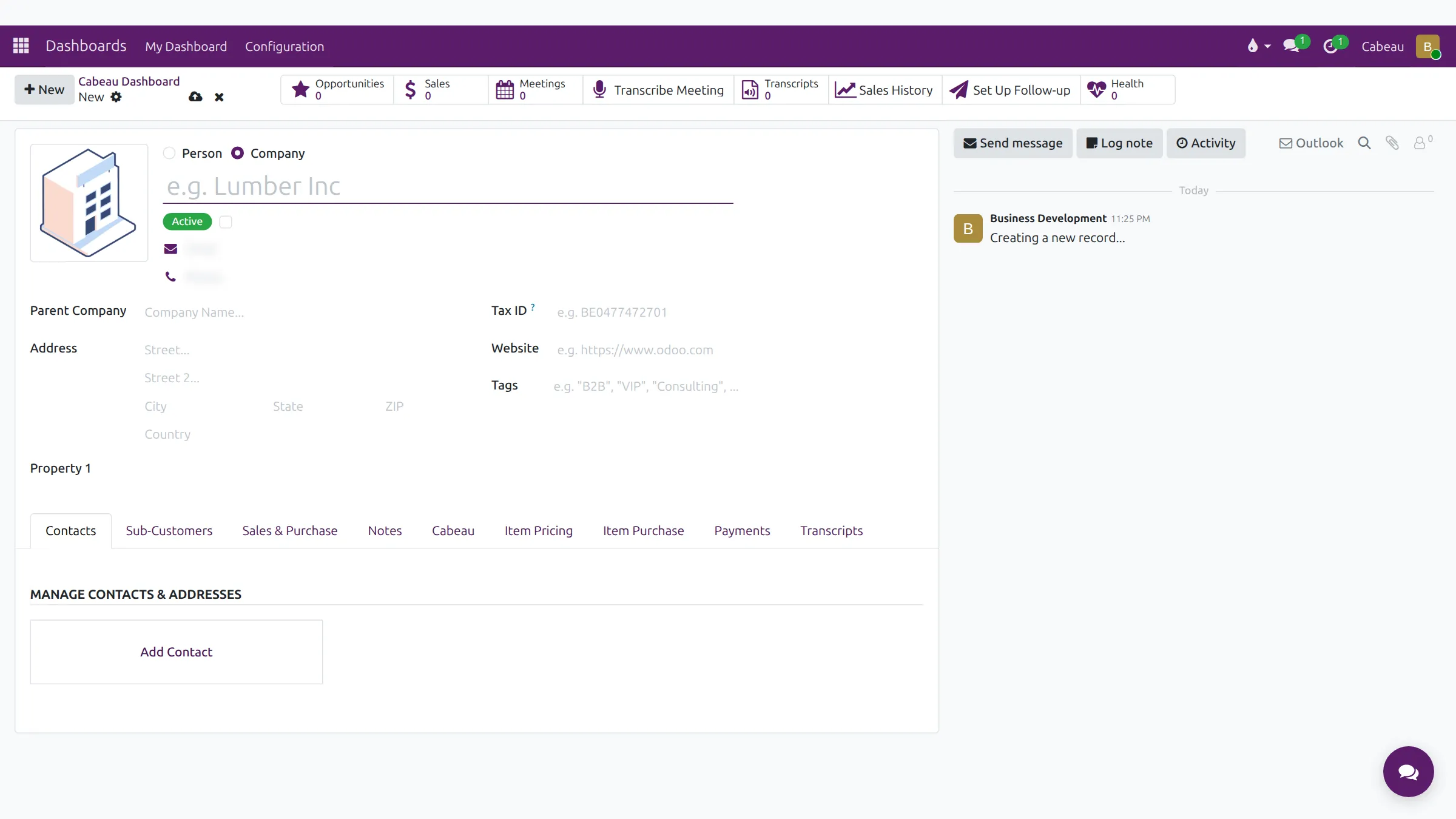
When a new company needs an account, create it in the Hub. The green Customer button on your dashboard opens a blank customer form.
Transcript
- This video covers adding a new customer account in Cabeau Hub.
- On your dashboard, click the green Customer button. A blank customer record opens.
- Choose person or company, then type the account name where the example name shows. Email and phone sit just below.
- Add the parent company if this is a branch, the address, the tax I D, the website and any tags.
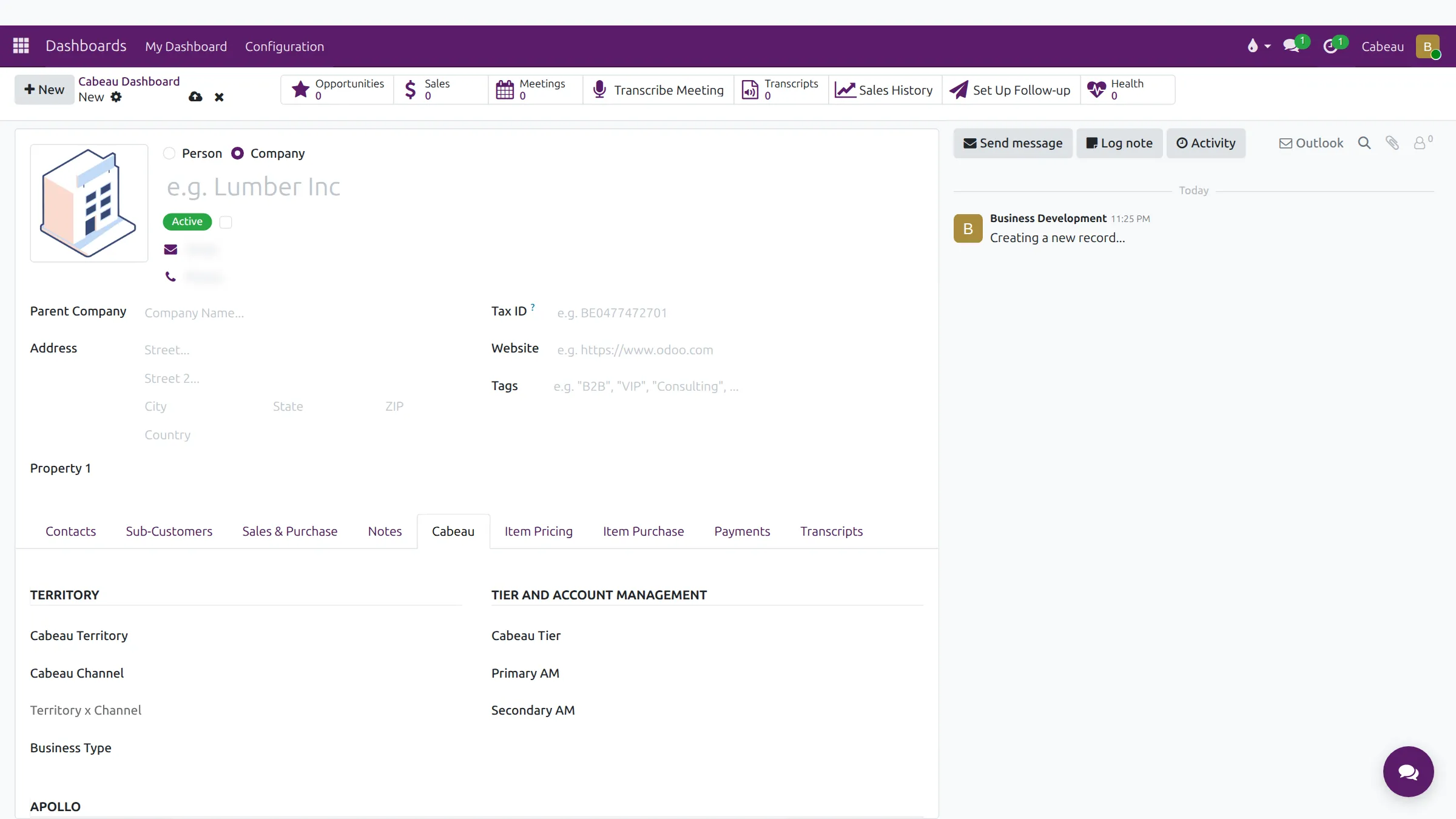
- The Cabeau tab places the account: its territory, its channel, and its business type.
- It also sets the tier, the primary and secondary account managers, and the expected reorder cadence used for follow-ups.
- Sales and Purchase holds the salesperson, payment terms, the pricelist and the sales order instructions.
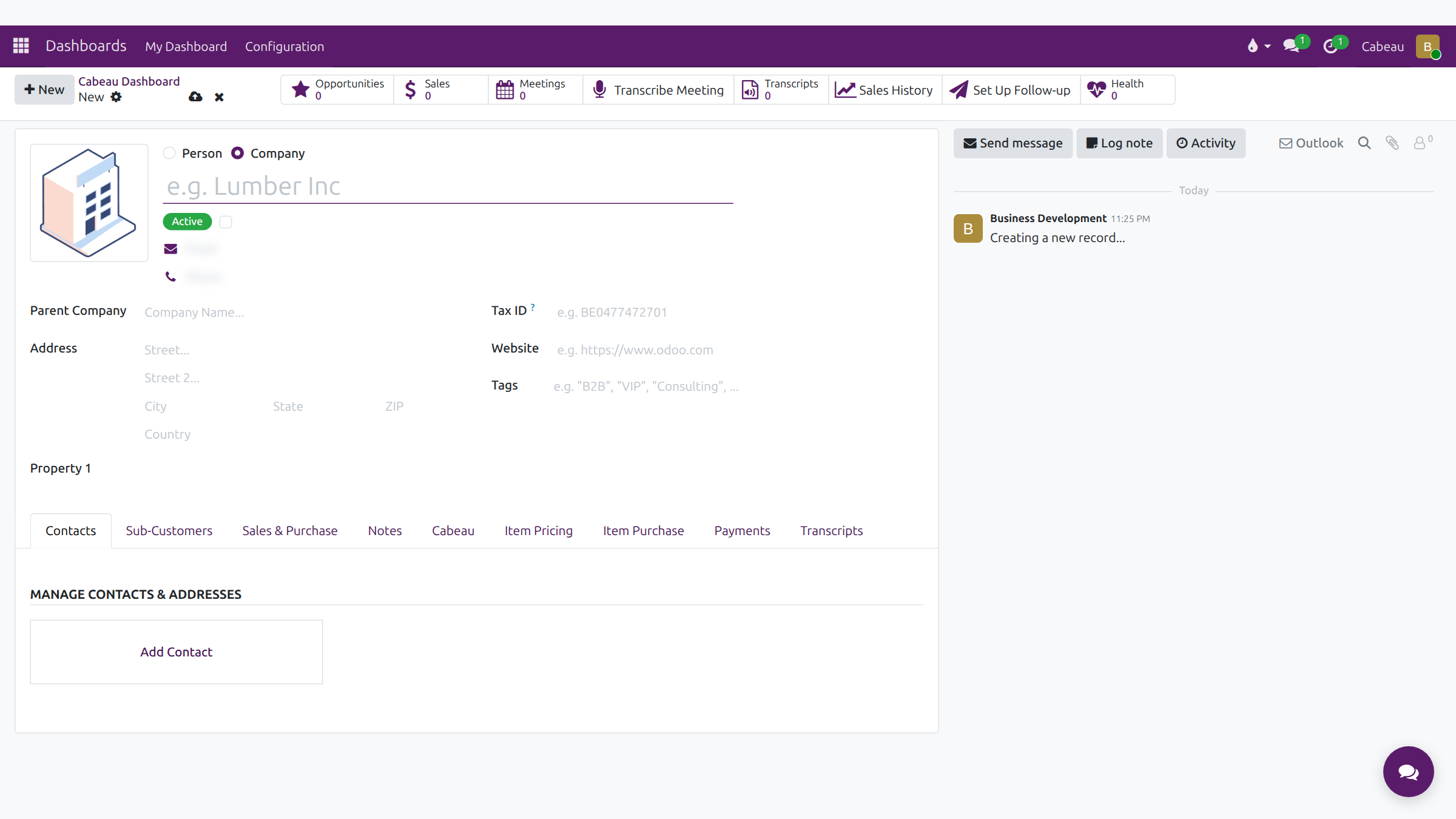
- Use Add Contact on the Contacts tab for each buyer and address. The record saves with the cloud icon next to its name.
- The cross discards a record you do not want to keep, which is what we do here.
- That is how you add a customer. Next, follow-ups and your activities.
Fill in the basics
Section titled “Fill in the basics”- Choose Company (or Person for an individual).
- Enter the name, email and phone.
- Add the parent company if this account sits under a group, then the address, tax ID, website and tags.
The Cabeau tab
Section titled “The Cabeau tab”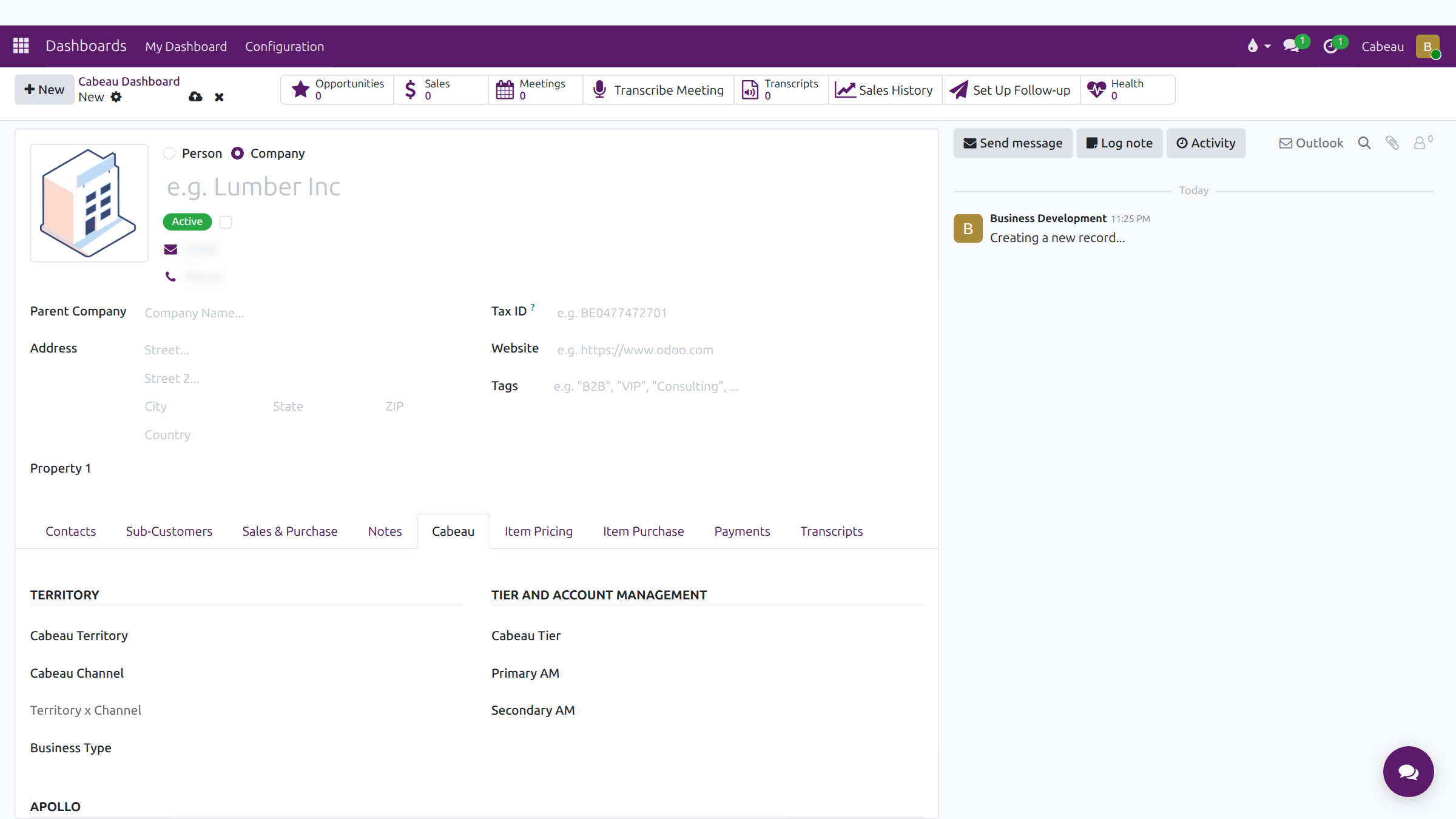
| Section | Fields |
|---|---|
| Territory | Cabeau Territory, Cabeau Channel, Territory x Channel, Business Type |
| Tier and Account Management | Cabeau Tier, Primary AM, Secondary AM |
| Apollo | Apollo ID, Amazon Reseller |
| NetSuite | Annual Revenue, Alternate Email, Last Sale Date, Last Order Date |
| Customer Programs | MDF Allowance %, ACS or eligible discounts, exclusion from the small FOB surcharge |
| Health | Health Score, Expected Reorder Cadence, Expected Next Order, Days Silent, Follow-up SLA |
Set the territory, channel, tier and Primary AM: they decide who looks after the account once it trades.
Other tabs
Section titled “Other tabs”- Sales & Purchase: salesperson, payment terms, pricelist, sales order entry notes and instructions.
- Contacts: add the buyer and other contacts with Add Contact.
Save or discard
Section titled “Save or discard”Save with the cloud icon beside the breadcrumb. The cross discards the new record. The Hub also saves a form when you leave it, so discard explicitly if you opened the form by mistake.