
Activities
Logging calls, meetings and messages
Section titled “Logging calls, meetings and messages”Every account and lead has the chatter on the right. The VP can log on every account; reps on their own.
| Button | Use it to |
|---|---|
| Send message | Email the customer; the email is filed on the account |
| Log note | Record an internal note, with attachments |
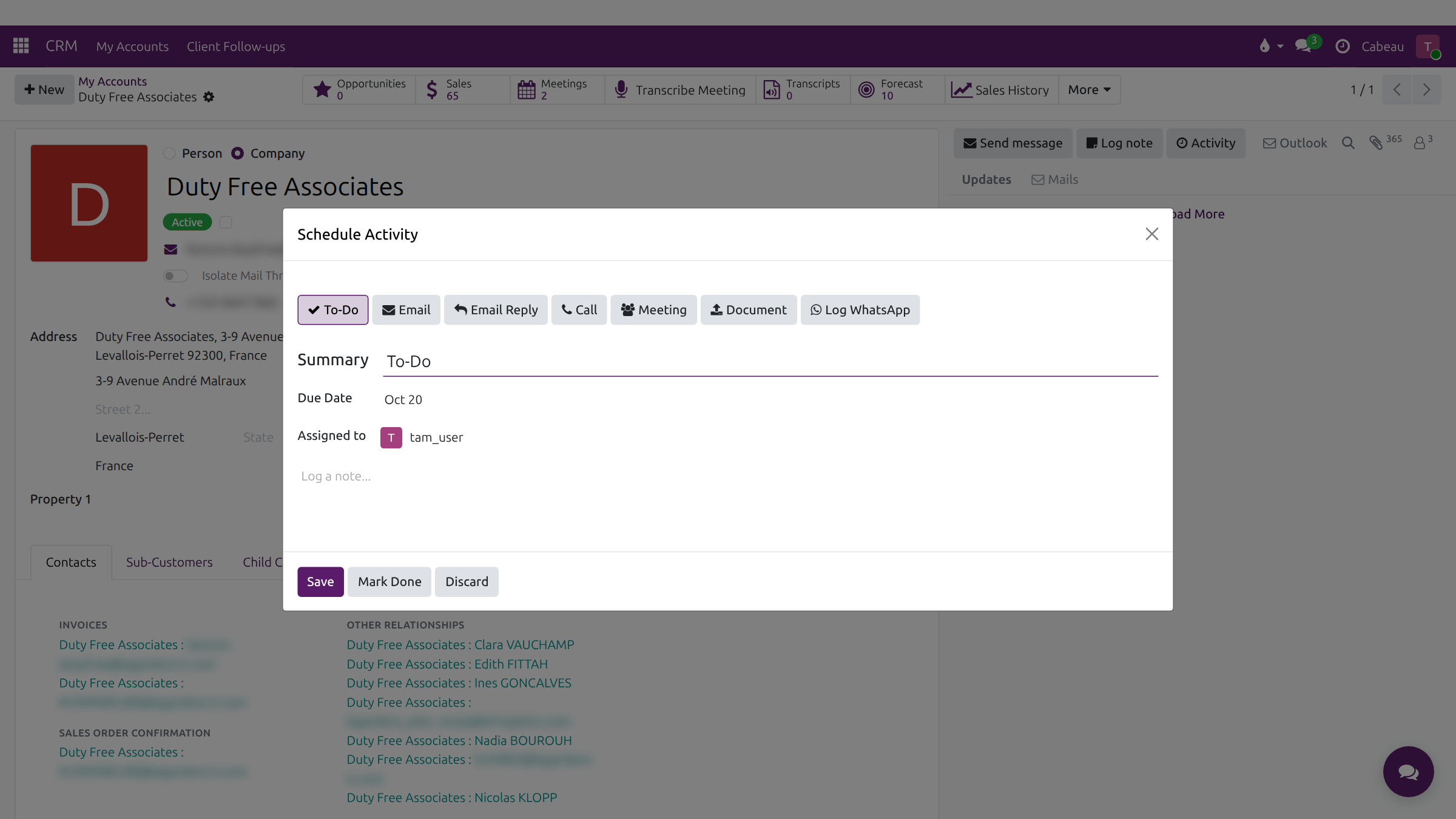
| Activity | Plan or log a To-Do, Email, Call, Meeting, Document or WhatsApp |
In Activity, choose the type, summary, due date and who it is for, then Save to plan it, or Mark Done to log something that has already happened, such as a phone call.
Transcript
- This video shows how to record what happens with a customer, right on the account.
- The panel on the right of every account and lead has three buttons: Send message, Log note and Activity.
- Log note records a call, a meeting or anything else, visible to your team but never sent to the customer.
- Type what happened, attach a file if you need to, then select Log. Here we close it without logging.
- Activity plans the next step. Choose a call, a meeting, an email, a to-do or a WhatsApp log, with a due date and who it is for.
- Save adds it under Planned Activities and in your task list. Mark Done logs it as already done. Discard closes it.
- Send message emails the customer's followers from your address, and files the email on the account.
- That is how to keep an account's history complete.
Inactive and at-risk account alerts
Section titled “Inactive and at-risk account alerts”- At-risk Accounts on your dashboard lists accounts that have gone quiet, with days silent and when each was flagged.
- Cabeau Tools > Reorder Monitor > Order Cadence shows every account’s ordering rhythm; filter to Lapsed for the overdue ones.
- An account past its usual gap gets a Reach out task for its primary Account Manager.
The VP sees alerts across the team; Account Managers see their own accounts.
Transcript
- This workflow shows how the Hub tells you a customer is due to reorder, or has gone quiet.
- Every account has an Order Cadence tab. It shows the usual number of days between orders, and when the last order arrived.
- Lapsed means the account has not placed a confirmed order within its expected window.
- Your dashboard gathers the accounts that need a call under At-risk Accounts, with days silent and the date each was flagged.
- Cabeau Tools, Reorder Monitor, Order Cadence lists every account you manage. The Lapsed filter shows the ones overdue.
- When an account passes its usual gap plus the slack for its tier, the Hub creates a reach out task on the account.
- That task goes to the account's primary account manager. As secondary account manager, you work from this board instead.
- Today the reminder arrives five days ahead of the expected order, and it does not escalate to the VP of Sales.
- That is how reorder alerts work today.
Pace alerts
Section titled “Pace alerts”When an account falls behind its forecast, it gets an activity such as ”… is 40% below pace for October” for its primary Account Manager. Under Pace on the dashboard lists the accounts furthest behind. The VP sees every rep’s alerts in the Activities column of All Accounts.
Transcript
- This workflow shows how to spot an account whose orders have changed from its usual pattern.
- Open an account in Order Cadence. You see the average and median order value, and how much the gap between orders varies.
- Trend shows whether orders are growing, flat or shrinking. Confidence tells you how far to trust the pattern.
- On your dashboard, Under Pace lists the accounts furthest behind their forecast this month, with the gap in dollars.
- The Forecast vs Actuals strip above it colours each month: green on target, amber close, red well behind.
- In the forecast sheet, Forecast vs Actual puts each month's actual sales under the forecast, with the variance.
- Click an actual figure to open the invoices behind it.
- Below pace tasks go to the account's primary account manager. A customer health dashboard in Metabase is not linked from the Hub yet.
- That is how to spot unusual orders.
Follow-up sequences
Section titled “Follow-up sequences”Set up an email sequence on an account from More > Set Up Follow-up: the contact, the interval, and the steps with their subject and template, then Start. It stops when the contact replies, or when you select Stop. See Setting up a follow-up sequence.
Transcript
- This video shows how an automatic follow-up sequence works, from setting it up to how it stops.
- CRM, Client Follow-ups lists every sequence. Remove the My follow-ups filter to see the whole team's.
- Each sequence emails one client contact from the sender's own mailbox.
- Send every sets the gap between emails, in days. For two follow-ups three days apart, set it to three.
- Steps holds one email per round, each with its own subject and template. Edit them before you start.
- Start sends the first step on the next scheduled run. Then each step goes out at the interval you set.
- A sequence stops on its own when the contact replies, or when every step has been sent. Stop ends it early.
- This finished sequence shows both steps sent, with the date of the last email.
- To start a sequence, open the account, then More, Set Up Follow-up. Account Managers and the VP of Sales set these up.
- That is how a follow-up sequence works.